The QA lead opened CHRON-50 ten minutes before the release gate. The acceptance spec was not attached. Someone had pasted a Nextcloud folder link into a comment three sprints ago — and the folder had moved since then.
"Where is the approved spec for this ticket?"
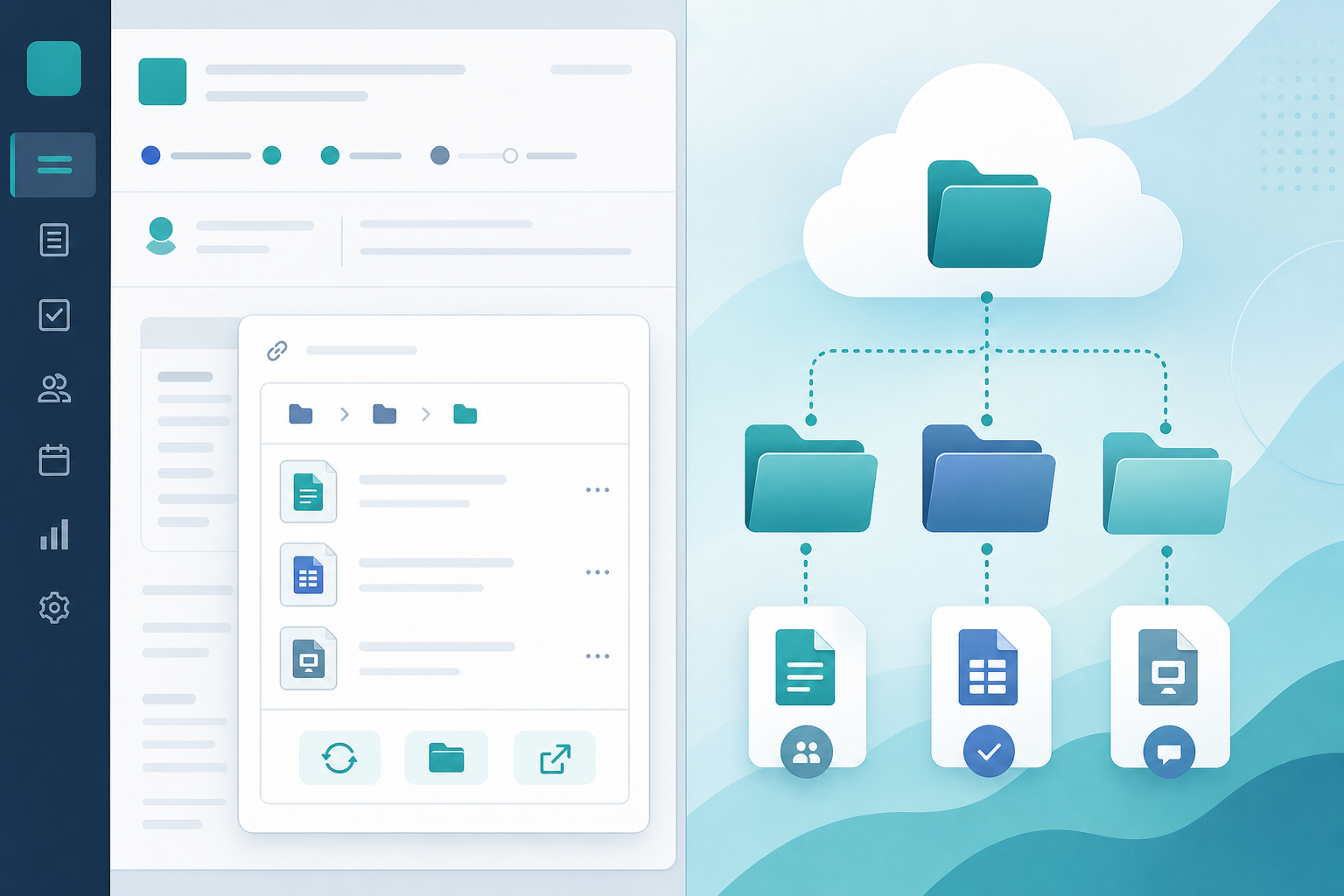
That question usually sends delivery teams back to email, Slack, or a second tab in Nextcloud. If your organization runs Nextcloud for Jira, the answer may sit in the issue sidebar: the Nextcloud files panel Jira teams use as a Jira issue file browser — linked folder, file list, refresh, change folder, and Open in Nextcloud — without uploading another copy of the same PDF.
This how-to explains what that Nextcloud Jira issue panel is, how each control works, and what admins must configure before it appears on your issues.
What you are trying to accomplish
You want folder context on the Jira issue — not another duplicate deliverable.
When someone opens a ticket, they should be able to:
- See which Nextcloud folder is linked to that issue
- Browse the current file list from that folder
- Refresh after a teammate uploads a new version
- Point the issue at a different folder when scope moves
- Open the folder or a file in Nextcloud when editing belongs there
That is the job of the panel. It is contextual UI in the issue view, not a replacement for your entire file-server strategy or for every Jira attachment habit.
What the Nextcloud files panel is
The Nextcloud files panel is a Forge issue panel in the Jira Cloud issue sidebar. Backlog Bridge's public Nextcloud for Jira product page describes it as the place where teams see the linked folder, file list, refresh controls, and Open in Nextcloud actions.
Think of it as a read-oriented browse files in Jira surface that reads from Nextcloud. Files stay in Nextcloud. Jira shows which folder belongs to the issue and what is inside it when the panel loads or refreshes.
| Approach | What you see on the issue | Best for |
|---|---|---|
| Jira attachment | Binary file on the ticket | Small, issue-local files |
| Manual URL in comment | Static link text | Quick one-offs; goes stale easily |
| Nextcloud files panel | Linked folder + browsable list + actions | Shared project folders already in Nextcloud |
This is a workflow comparison, not a product ranking. For when linked folders beat attachments across a delivery program, see Jira Attachments vs Nextcloud Linked Folders.
Panel at a glance
Public vendor copy and product UI describe five user-facing controls on a linked issue:
| Control | What it does | Typical use |
|---|---|---|
| Linked folder | Shows the Nextcloud path mapped to this issue | Confirm you are looking at the right project directory |
| File list | Lists files and folders the integration can read from that path | Scan for the spec, deck, or export before opening Nextcloud |
| Refresh | Reloads the list from Nextcloud | After a teammate uploads or renames files |
| Change folder | Updates which Nextcloud folder the issue points to | Scope moved to a different client or release tree |
| Open in Nextcloud | Opens the linked folder or a listed file in Nextcloud | Edit, share, or inspect permissions where files live |
Vendor positioning emphasizes a link-first workflow: Jira carries folder context; Nextcloud remains the system of record for file operations.
Who does what
| Role | Responsibility |
|---|---|
| Jira admin | Install app, configure HTTPS connection, approve egress, test before save |
| Nextcloud admin | Service account, app password, folder permissions, group-folder policy |
| Delivery lead / PM | Folder taxonomy; manual link vs auto-create Jira/ISSUE-KEY policy |
| Issue viewers | Use panel to browse, refresh, and open — link folders per team rules |
Requirements before the panel works
Site-level (admin, once)
Public vendor documentation themes from the product page:
- Install and configure Nextcloud for Jira on Jira Cloud
- Enter HTTPS Nextcloud URL, service account, and app password
- Run test connection and save only when status shows Connected
- Approve customer-managed egress so Forge can reach your Nextcloud domain
Vendor FAQ copy states app passwords are stored with Forge encrypted secret storage and are not returned to the UI after save. Plan credential rotation with your Nextcloud admin.
Product copy also states admins can disconnect without losing issue folder mappings — treat that as a vendor claim to verify in sandbox before relying on it during credential rotation.
Issue-level (ongoing)
- The issue must have a linked Nextcloud folder — manually chosen or auto-created per team policy
- The Nextcloud service account must be able to read that folder under Nextcloud permissions
- Nextcloud must be reachable from Jira Cloud when someone opens the issue
What you may see before linking works
Exact empty and error states should be verified in trial — UI copy can change. Generally:
- No site connection — panel cannot load folder data until an admin completes setup
- Connection misconfigured or expired — panel may error until credentials or egress are fixed
- Issue not yet linked — panel may prompt for folder linking rather than showing a file list
- Linked folder deleted or inaccessible in Nextcloud — list may be empty or error; fix permissions or relink in Nextcloud first
Admin setup: connect Nextcloud once
Only Jira administrators configure the site connection.
- Open Nextcloud for Jira admin settings in Jira
- Enter your team's HTTPS Nextcloud URL
- Provide the service account username and app password (Nextcloud documents app passwords for service integrations)
- Click test connection
- Save when the status confirms Connected
Do not skip the test step. Teams discover connectivity problems at issue open time when admins skip verification.
Issue workflow: link a folder
Once the site connection works, each issue needs a folder mapping before the file list is useful.
Backlog Bridge describes two paths:
- Manual link — point the issue at an existing Nextcloud project folder (common when one client folder serves multiple issues)
- Auto-create — optional creation of
Jira/ISSUE-KEYfolders (useful when every ticket gets its own directory)
"Should this epic share the client folder or get its own ISSUE-KEY directory?"
That decision belongs to delivery leads and Nextcloud admins. Mixed habits recreate the "some issues linked, some not" problem.
Issue workflow: read the linked folder path
When linking succeeds, the panel shows the linked folder path — for example, a pattern like Jira/CHRON-50 when auto-create is enabled.
Reviewers should treat that path as where project files for this ticket live, rather than hunting comment URLs from last quarter.
If the path looks wrong, use Change folder instead of posting another link in comments.
Issue workflow: browse the file list
The panel renders a file list from the linked folder. Names reflect what the integration reads from Nextcloud at load time.
This is browse-and-orient behavior — confirm the expected spec or export is present before opening Nextcloud.
Public copy describes browse and open actions, not a full Nextcloud web UI embedded in Jira. Upload, rename, share, and version restore typically still happen in Nextcloud unless your trial shows additional behavior — confirm before training teams.
Issue workflow: refresh the file list
Click Refresh to reload the list without closing the ticket.
Linked folders change in Nextcloud when teammates upload files. The panel does not assume live sync on every issue open — refresh is the explicit "pull latest listing" action.
Use refresh after:
- A designer drops new finals into the folder
- A PM reorganizes subfolders
- You suspect the list is stale from an earlier open
Issue workflow: change folder
When scope moves — the issue belongs to a different client directory, or auto-create pointed at the wrong tree — use Change folder to update the issue mapping.
That updates which Nextcloud directory the issue references going forward. It does not by itself move files between directories. Relocate assets in Nextcloud first if your process requires it, then relink.
Document who may change folders. Unrestricted changes can break folder discipline quickly.
Issue workflow: open in Nextcloud
When someone needs to edit, share, or inspect permissions, use Open in Nextcloud on the folder or a listed file.
That action opens Nextcloud in the browser. Nextcloud login, group folders, and external share rules still apply. Seeing the panel on a Jira issue you can browse does not automatically grant file access in Nextcloud — verify both permission layers for contractors and client-facing folders.
What the panel does not replace
Phrase the limits precisely:
Jira attachments still fit small, issue-local screenshots and one-off exports. The panel targets shared folder context.
Manual URL paste in descriptions or comments does not give you refresh, structured linking, or a consistent sidebar location.
Nextcloud permissions govern who can open files even when they can see the Jira issue.
File management inside Jira — vendor copy positions the app as link-first browsing, not turning Jira into a second file store.
Folder taxonomy across many issues — one linked folder per issue; shared deliverables still need PM discipline so epics and stories do not point at conflicting trees.
Common pitfalls
Stale mental model from attachments
Teams expect files to "live on the ticket." Linked folders live in Nextcloud. Train people to check the sidebar panel, not only the attachment strip.
Comment URL drift
Old Nextcloud links in comments contradict the linked folder. Clean stale URLs when adopting structured linking.
Skipping refresh
Users assume the list is always current. Build refresh into the workflow when files change frequently.
Permission boundary confusion
Jira issue access and Nextcloud folder ACLs are separate. Test with the same user personas you use for client reviews.
Site connection fragility
Password rotation or egress changes can blank every panel at once. Admins should treat connection health as shared infrastructure, not per-issue troubleshooting.
Five steps to validate panel behavior in sandbox
Run this before org-wide rollout:
- Configure test connection in admin settings with a sandbox Nextcloud instance
- Create a test issue and link a folder with several files (or trigger auto-create)
- Open the issue — confirm linked path, file list, and panel actions appear as documented
- Add a file in Nextcloud, return to Jira, click Refresh, confirm the new file appears
- Click Open in Nextcloud on a file and on the folder — confirm login and permissions for representative users
Also test Change folder on a second directory, and simulate credential rotation or disconnect/reconnect if your admin runbook requires it. Document which issue types get auto-create vs manual linking.
Admin and security considerations
Connecting a file server to Jira is an admin decision, not only a PM request.
- Can Jira Cloud reach your Nextcloud URL over HTTPS from Forge egress?
- Who approves customer-managed egress for your domain?
- Which service account owns linked folders, and what happens if it is deactivated?
- Are app passwords rotated on schedule per Nextcloud policy?
- Which Jira roles can open issues that display folder paths and file names?
- Do Nextcloud ACLs restrict Open in Nextcloud appropriately for external collaborators?
Public vendor copy mentions HTTPS-only connections, blocked private/metadata hosts as SSRF mitigation, and Forge secret storage for credentials. Admins should read Marketplace privacy materials if procurement requires them.
No Atlassian Marketplace listing URL was provided in editorial metadata for this article, and listing details were not verified at the time of writing (July 2026). Search Marketplace for "Nextcloud for Jira" or vendor "Backlog Bridge" and verify current pricing, hosting, scopes, privacy tab, and install signals before installation.
Do not infer SOC 2, ISO, GDPR, DPA, or Cloud Fortified status without explicit published evidence.
When to use a different approach
Stay with attachments when files are small, issue-scoped, and rarely shared across tickets.
Stay with manual links when volume is low and admin setup is not justified yet — but accept stale URL risk.
Adopt the panel when Nextcloud already holds project deliverables and pasted folder links keep failing quietly.
Fix folder policy first when the pain is duplicate specs across epics — the panel shows one linked folder per issue; it does not replace delivery-wide taxonomy decisions.
Open the issue, not the comment thread
Delivery teams live in Jira issues. When project files live in Nextcloud, the Nextcloud files panel Jira sidebar answers two questions at open time: which folder belongs to this ticket, and what is in it right now.
Linked folder. File list. Refresh. Change folder. Open in Nextcloud. Those five actions are the core workflow — once admins connect the site and your team links folders with discipline.
Verify vendor claims in sandbox before production folder paths appear in issue sidebars.
See how Nextcloud for Jira describes issue folder linking, HTTPS connection setup, and the Nextcloud files panel for teams running both systems.
For the broader file-strategy decision — attachments vs linked folders — read Jira Attachments vs Nextcloud Linked Folders.