For an accessible Mermaid diagram in Confluence, explain its meaningful relationships in nearby text, give the diagram a useful name, and check how the published page exposes it to readers. Add accTitle and accDescr where your renderer supports them, then verify the output. These two source fields alone do not establish that a macro, its reader controls or an exported document is accessible.
This guide provides an original fictional handoff example, editable source, a rendered SVG and a blank review checklist. We checked the example with Mermaid 11.16.0 and inspected its inline SVG in Chromium's accessibility tree. An installed Confluence session and a human screen-reader test remain separate checks.
Start with the decision the reader needs to understand
Write the explanation before polishing the diagram. For our example, the reader needs to know who reviews a delivery handoff, what happens when information is missing, and when work can start.
“A diagram with five boxes” describes appearance but leaves those questions unanswered. A useful text equivalent names the actors, conditions and outcomes. It should also explain any loop that could otherwise look like a one-way process.
W3C's complex-image guidance recommends a short identification together with a fuller description of the information conveyed by a complex image. Keep that explanation available in the page content so readers can find it while reading the surrounding instructions.
A complete example: reviewing a delivery handoff
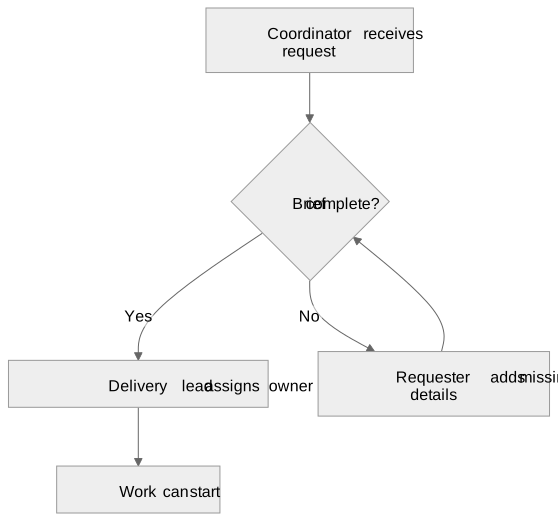
This is a fictional process for illustrating documentation. Arrows show the order of steps. The Yes and No labels describe the result of the completeness check. The diagram does not specify deadlines, automation, approval authority or a particular software integration.
Process description
- A coordinator receives a handoff request and checks whether its brief is complete.
- If the brief is complete, the delivery lead assigns an owner. Work can then start.
- If information is missing, the requester adds the missing details. The request returns to the same completeness check; it does not skip directly to work starting.
The picture contains five nodes and five directed connections. Each connection is accounted for in that description, including the return from adding details to checking the brief. Branch labels carry the condition explicitly, so the explanation does not depend on the color of a box.
Download the editable Mermaid source, full-size SVG and blank accessibility review checklist.
Add a title and description to the source
The example uses a short title and a multiline description:
flowchart TD
  accTitle: Fictional delivery handoff review
  accDescr {
    A coordinator receives a handoff request and checks whether the brief is complete.
    A complete brief goes to the delivery lead, who assigns an owner; work can then start.
    An incomplete brief returns to the requester for details, then goes through the same completeness check again.
  }
  RECEIVE["Coordinator receives request"] --> CHECK{"Brief complete?"}
  CHECK -->|Yes| ASSIGN["Delivery lead assigns owner"]
  ASSIGN --> START["Work can start"]
  CHECK -->|No| DETAILS["Requester adds missing details"]
  DETAILS --> CHECK
The Mermaid accessibility reference documents accTitle:, single-line accDescr:, and the multiline accDescr { ... } form. The multiline form used here has braces and no colon after accDescr.
In our generated SVG, the title and description became separate elements, and the SVG's ARIA references resolved to those elements. When that SVG was embedded inline in our local test page, Chromium exposed its title as the accessible name and the handoff explanation as its description.
That is useful evidence about this file and embedding. The preview in this article is an image element with its own short alternative text and nearby process description. It has a different embedding from the inline SVG test, so readers do not have to rely on the image exposing the SVG's internal description.
If you encounter a source error while adapting the example, use the Mermaid troubleshooting guide. Restore a working example before investigating how it is exposed to assistive technology.
Check what the published Confluence page delivers
After inserting a diagram, inspect the saved page in reading mode. Preview, the published macro and an export can produce different representations. Your review should name which representation you checked.
| Representation you find | What to inspect | What to retain in the page |
|---|---|---|
| Inline SVG | Its accessible name, description and the elements referenced by their IDs | A visible explanation of the meaningful paths |
| An image containing an SVG or PNG | The image's alternative text and where the detailed explanation appears | Short identification plus a nearby description |
| A macro with a separate reader or embedded frame | The macro's name, access to its reading controls and the path back to the page | Context and a text equivalent outside the reader |
| An exported document or image | The actual reopened export and the explanation delivered with it | An equivalent description in the document or accompanying material |
If you use browser developer tools, select the actual graphic in the accessibility view. Check the name and description that the browser computes. For an SVG reference such as aria-describedby="diagram-description", confirm that an element with that ID still exists in the delivered SVG. Merely finding a desc element somewhere in the file does not confirm the reference works.
This is a practical integration check: processing can change element IDs or how a diagram is embedded. Our separate local Diagram Lens renderer check found a stale description reference after processing. We therefore used standard Mermaid output for this downloadable accessibility example and do not present the component check as proof of Diagram Lens accessibility.
Review the reading experience as well as the markup
Use the browser and assistive technology your audience relies on. Begin before the diagram and continue beyond it. Check whether the reader can identify the diagram, find the full explanation, and follow the incomplete-brief branch without interpreting its visual position.
For interactive reader controls, use the keyboard to reach and activate them, then return to the article. Record any control whose purpose is unclear or whose focus is difficult to follow. A named static graphic does not establish that surrounding zoom, fullscreen or export controls work well.
Increase page zoom and check whether labels remain useful or whether a full-size view is needed. Keep conditions in words: instructions such as “take the green path” need a named condition or outcome that also makes sense without color.
The review checklist CSV leaves results and evidence blank. Record the macro version, browser, assistive technology, reviewer, date and page URL as you perform the checks. An unchecked worksheet is a starting point, not an accessibility certification.
Keep the explanation aligned when the process changes
Suppose the team adds a new requirement: a named owner must accept the handoff before work starts. Update the source with that step, revise the process description, and check whether the title or description metadata also needs changing.
A reviewer can compare three things: the source change, the rendered paths and the explanation a reader receives. Ask them to trace the new acceptance step and the incomplete-brief loop in all three. This catches a common maintenance problem: a correct new picture beside an outdated text alternative.
Use the diagram governance guide to assign ownership and review triggers. If you distribute diagrams outside Confluence, follow the export guide and check the exported representation separately.
For Diagram Lens evaluations, include these reading and export checks in the trial. Its workflow should be assessed in the actual installed version and with your users' tools. The source, SVG and prose in this guide let you start that evaluation with a small example whose intended meaning is explicit.