To fix a Mermaid parse error in Confluence, reduce the source to a small example, identify the first failing statement, and preview after each correction. Check identifiers, delimiters and the syntax supported by your macro. If the diagram renders, also check its meaning: valid syntax can still produce the wrong arrow or node.
This guide uses original, deliberately small fixtures tested with Mermaid 11.16.0 and a local Diagram Lens renderer. The two broken fixtures failed parsing; their corrected versions rendered. Those results establish the behavior of these examples in the recorded environment. An installed Confluence macro may use a different version or configuration.
Start with the symptom you can reproduce
Save a copy of the original source before changing it. Record the macro name, its installed version if available, and the error text. Then decide which symptom you actually have:
| What you observe | First check | Useful next action |
|---|---|---|
| An error names a line, token or unexpected character | The indicated statement and the statement immediately before it | Check closing quotes, brackets and reserved syntax |
| A small diagram works, but the full source fails | The first addition that changes the result | Add one complete statement or balanced group at a time |
| The diagram appears but an arrow or label is wrong | The source that creates that particular relationship | Compare the intended node IDs and connector with the rendered result |
| The same source works elsewhere but fails in the macro | Renderer version, supported syntax and macro restrictions | Compare one failing feature in otherwise identical source |
| Even the small example below produces no diagram | Macro loading, configuration, permissions or a reported service error | Preserve the source and investigate the macro rather than repeatedly rewriting the diagram |
For a baseline, paste only these lines into the macro's Mermaid source field. Omit the Markdown fence markers if the field expects raw Mermaid:
flowchart LR
  REQUEST["Request received"] --> REVIEW["Review request"]

Download the minimal source. If it works, keep that copy and add your process back in complete pieces. When an addition fails, undo only that addition and inspect it. Splitting inside a quoted label or leaving half a subgraph creates a new problem and makes the comparison less useful.
Case 1: an identifier that collides with syntax
Our first broken fixture tries to use lowercase end as the destination identifier:
flowchart LR
  REVIEW["Review request"] --> end
It failed parsing in both checks. We replaced that identifier with FINISH and supplied the visible label separately:
flowchart LR
  REVIEW["Review request"] --> FINISH["End"]
The corrected fixture rendered two nodes and one edge. This makes the intended distinction explicit: FINISH identifies the node in source; End is the text a reader sees.
The Mermaid flowchart documentation calls out lowercase end as a flowchart pitfall. Apply the correction to the offending node. A closing end used by a subgraph has a different job, so a global replacement across the file can introduce another error.
Download the broken source, fixed source, or fixed SVG.

Case 2: a missing closing bracket
This fixture closes the label's quotation mark but leaves its node bracket open:
flowchart LR
  REQUEST["Request received"] --> REVIEW["Review request"
Our parser check rejected it. Adding the final ] produced the same two-node baseline diagram:
flowchart LR
  REQUEST["Request received"] --> REVIEW["Review request"]
Work from the smallest unmatched unit: a label, node or group. If an error points at the following statement, also inspect the end of the previous one. The point where parsing stops can be later than the character you omitted.
Download the broken source, fixed source, or fixed SVG.

Case 3: valid source that draws the wrong relationship
Suppose you intend to connect a request to Operations and type:
flowchart LR
  request---ops
This passed parsing in our test. It rendered a circle-ended connection to a node labeled ps: the o was interpreted as part of the connector. A green preview would therefore miss the authoring mistake.
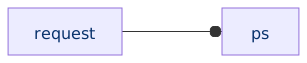
For a directional handoff, make both nodes and the intended arrow explicit:
flowchart LR
  REQUEST["Request"] --> OPS["Operations"]

The corrected fixture rendered the Operations label and an arrowhead rather than a circle. Choose the connector that expresses your actual relationship; an undirected association may need a plain line instead.
Mermaid documents the special o and x connector endings in its flowchart syntax reference. Our fixture demonstrates why checking node labels and arrow meaning matters after parsing succeeds.
Download the unintended source and corrected source.
Why source can work in one renderer and fail in another
A successful preview elsewhere gives you a comparison point. It does not identify the version, supported diagram types or source restrictions in your Confluence macro.
Compare the same minimal source in both places and record the versions when they are exposed. Remove optional styling and source-defined interactivity from the comparison. Restore each feature separately so you can name the first difference, such as one diagram declaration or one label pattern.
Backlog Bridge's Mermaid authoring guidance uses static diagrams and plain labels for Diagram Lens. If your macro reports a restriction, follow its documented supported syntax. Changing an administrator-owned security setting is not a syntax correction.
If the original source came from an AI assistant, keep the same method: retain a copy, isolate the failing statement, render the correction and check the diagram's meaning. A generated explanation of why code should work is not a render result.
Use the evidence pack to make a useful support report
The downloadable test-results CSV records the parser and local renderer outcomes, Mermaid version and check time. The broken examples are intentionally invalid. Use the fixed examples for your baseline.
When requesting help, include the smallest failing source, the expected relationship, the actual error or picture, and whether the baseline works in the same macro. Add the macro version and relevant page/view context. Remove private project names and credentials from the shared reproduction.
For an existing Diagram Lens installation, use its support guidance to supply that reproduction. The examples here were checked locally; they do not establish the behavior of every installed version.
Once the source works, follow the process-documentation guide to place it beside the runbook. If the result is difficult to navigate, the large-diagram guide covers splitting an overview from detailed paths. Before sharing it broadly, add the text equivalent described in accessible Mermaid diagrams.