The delivery PM Slack-pinged you Monday: "Nextcloud panels are blank on every issue."
You open Nextcloud for Jira admin settings. The connection page looks fine. You re-enter the app password someone emailed from a personal Nextcloud account, click save, and move on. Tuesday, every Nextcloud files panel Jira sidebar still errors. Teams paste folder URLs into comments again.
That is what connect Nextcloud to Jira looks like when admins treat connection settings as a one-time paste field instead of a shared infrastructure decision between Jira Cloud, Forge egress, and a durable Nextcloud service account.
"We connected Nextcloud — why is every issue panel empty?"
Because the site connection is not just credentials. It is HTTPS reachability from Forge, approved egress to your Nextcloud domain, and an app password that outlives whoever generated it.
Quick answer
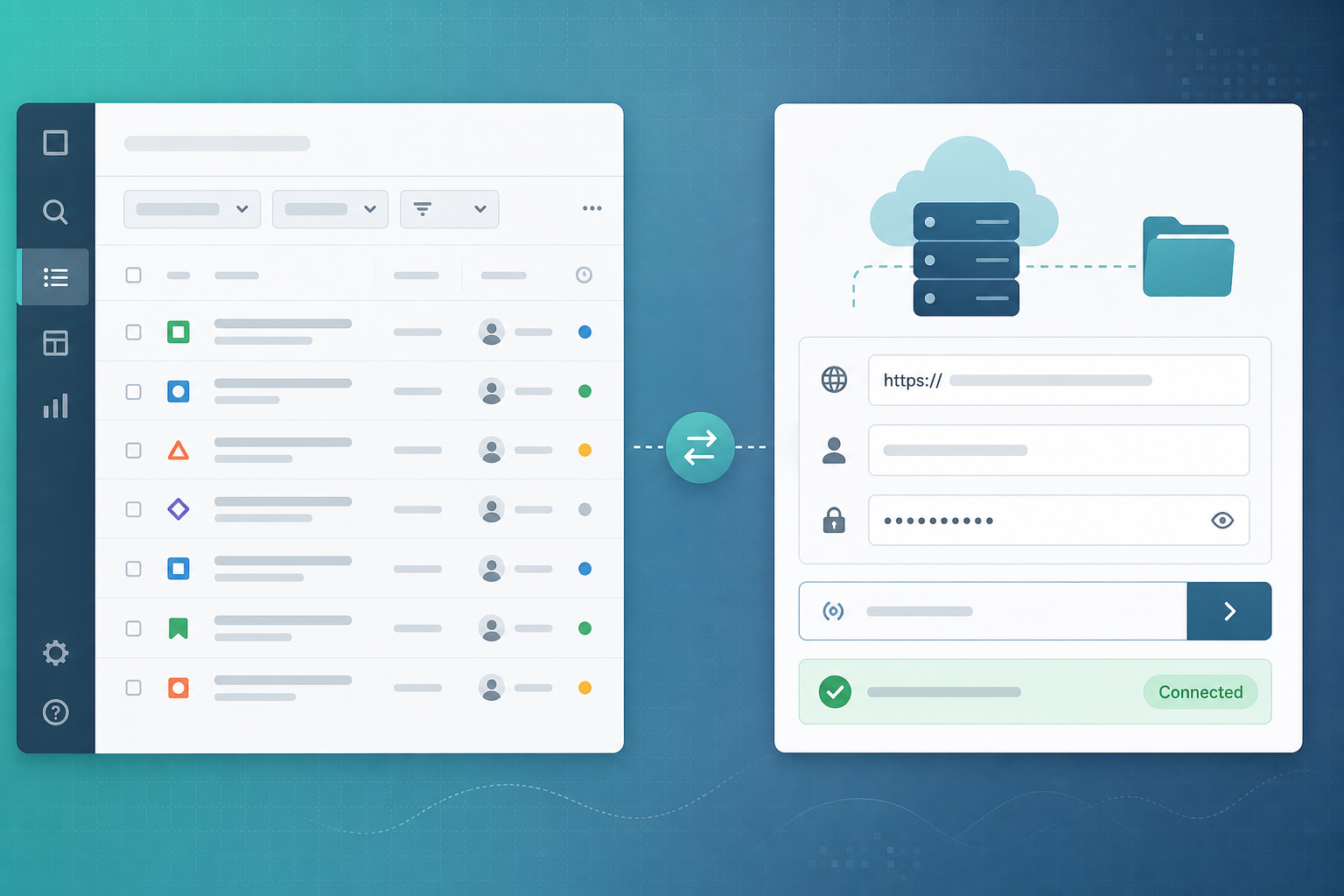
Jira Nextcloud admin setup in Nextcloud for Jira follows five steps:
- Enter your team's HTTPS Nextcloud URL (base instance URL, not a deep folder link)
- Enter the service account username for the integration user
- Enter an app password generated for that account in Nextcloud — not the user's main login password
- Click test connection and confirm status shows Connected
- Save — and treat saved credentials as replace-only; the admin UI does not show the app password again after save
Prepare on the Nextcloud side first. Your Nextcloud admin should create the service account, generate the app password, and confirm folder read permissions before Jira admins save production credentials.
Approve customer-managed egress for your Nextcloud hostname so Forge can call your instance.
Document rotation. When the app password changes in Nextcloud, someone must re-enter it in Jira connection settings the same day.
What you are trying to accomplish
You want one verified site connection so delivery teams can link Nextcloud folders on Jira issues and browse files from the issue sidebar.
The admin job is not "paste a URL." It is:
- Point Jira Cloud at the correct HTTPS Nextcloud instance
- Authenticate with a durable service account, not a departing teammate's personal user
- Prove connectivity with test connection before teams depend on the panel
- Save only when status confirms Connected
- Maintain egress approval and credential rotation after go-live
Public vendor copy for Nextcloud for Jira describes this as a Forge app that connects Jira Cloud to any reachable HTTPS Nextcloud instance. Connection is step one. Issue folder linking and panel behavior come after the site connection works.
Requirements
Jira side
- Jira Cloud site with permission to install Forge apps
- Jira administrator access to Nextcloud for Jira connection settings
- Authority to approve customer-managed egress to your Nextcloud domain — Atlassian documents this pattern for Forge apps calling external HTTPS APIs; see Configure egress controls for platform context
- Sandbox project or test issue for post-connection validation
Nextcloud side
- HTTPS Nextcloud instance reachable from the public internet (vendor copy emphasizes HTTPS-only connections)
- Nextcloud administrator who can create a service account and app password
- Folder permissions scoped so the service account can read directories your teams will link
- Agreement on whether issues use manual folder links or optional auto-create of
Jira/ISSUE-KEYfolders
Network and security
- Outbound HTTPS from Atlassian Forge to your Nextcloud hostname must succeed after egress approval
- Internal-only hostnames or private IP URLs are unlikely to work — vendor trust copy states private and metadata hosts are blocked as SSRF mitigation
- Credential storage and rotation process aligned with your security team
Questions to ask your Nextcloud admin
Before you accept credentials over Slack, ask:
- Which HTTPS base URL is production — and does it match what users type after login?
- Which service account owns the integration, and will that account stay active?
- Can that account read every project folder directory you plan to link from Jira?
- Was the credential an app password generated for this integration — not someone's main password?
- Who updates Jira when we rotate Nextcloud app passwords?
If any answer is unclear, pause connection setup until the Nextcloud admin confirms.
Install and open connection settings
Install Nextcloud for Jira on Jira Cloud through your normal admin app install flow. Exact menu paths change — use Atlassian admin documentation for your site to locate installed Forge apps and their configuration screens.
No Atlassian Marketplace listing URL was provided in editorial metadata for this article, and listing details were not verified at the time of writing (July 2026). Search Marketplace for "Nextcloud for Jira" or vendor "Backlog Bridge" and verify current hosting, pricing, scopes, and privacy tab before production install.
After install:
- Open Nextcloud for Jira admin / connection settings as a Jira administrator
- Complete or verify customer-managed egress approval for your Nextcloud hostname if prompted
- Proceed to URL, account, and app password entry
Only Jira administrators should access connection settings. Vendor FAQ copy states app passwords are stored with Forge encrypted secret storage and are not returned to the UI after save.
Step-by-step: enter the HTTPS Nextcloud URL
In connection settings, enter the base URL your team uses in the browser — for example https://files.yourcompany.com.
Common mistakes:
| Mistake | Why it fails |
|---|---|
http:// instead of https:// | Vendor copy requires HTTPS-only connections |
Deep path like /index.php/apps/files/ | Usually wrong — use the instance base URL unless vendor guidance says otherwise |
| Internal hostname not reachable from Forge | Forge egress runs outside your LAN |
| Wrong tenant when multiple Nextcloud instances exist | Issues link folders on the wrong file server |
Confirm the URL with your Nextcloud admin using a browser login test, not a pasted comment link from an old ticket.
Step-by-step: service account username
Enter the Nextcloud username for the integration account.
| Approach | Advantage | Risk |
|---|---|---|
| Personal user account | Fast to obtain on day one | Breaks on offboarding; permissions follow one person |
| Dedicated integration user | Durable ownership; clearer audit trail | Requires Nextcloud admin to create user and set visibility |
| Shared admin account | Broad folder access | May exceed least privilege; harder to rotate safely |
Prefer a dedicated integration user whose login stays active and whose folder visibility matches directories delivery teams will link.
Step-by-step: app password
Generate an app password in Nextcloud for the service account. Nextcloud documents app passwords for integrations that should not store the primary account password.
Typical flow (verify current UI labels in your Nextcloud version):
- Sign in as the service account — or have the Nextcloud admin manage devices for that user
- Open security or session/device settings
- Create an app password labeled
Jira Cloud - Nextcloud for Jira - Copy the password once into your secrets process
- Paste into Jira connection settings before the secret is discarded
Custody rules:
- Never publish app passwords in tickets, Slack, or screenshots
- Name owners on both Jira and Nextcloud sides
- Rotate on the same schedule as other integration credentials
- Re-enter in Jira admin settings the same day Nextcloud revokes the old password — you cannot read the saved password back from the UI
Step-by-step: test connection
Click test connection before save.
Public product copy describes a clear Connected status when the check succeeds. Vendor materials emphasize verifying the connection before teams start linking folders. Treat any other status as a blocker.
If test fails, check in order:
- URL spelling and HTTPS scheme
- App password copied correctly — no trailing spaces
- Service account not locked or disabled in Nextcloud
- Customer-managed egress approved for the Nextcloud hostname
- Nextcloud reachable over HTTPS from outside your corporate network
Step-by-step: save when Connected
Save only when test connection shows Connected.
After save:
- Reload admin settings and confirm connected state persists
- Link a sandbox folder the service account can read
- Open a test issue and confirm the Nextcloud files panel loads — see What Is the Nextcloud Files Panel on a Jira Issue? for panel workflow detail
Vendor copy claims you can disconnect without losing issue folder mappings — verify in sandbox before relying on that during credential rotation.
Customer-managed egress approval
Forge apps that call your Nextcloud instance require customer-managed egress: your Jira site admin approves outbound HTTPS to the Nextcloud domain you configure.
Use the customer-managed egress admin approval guide to verify the exact hostname, capture the consent decision, and test removal and reapproval before production rollout.
If egress is missing, test connection may fail — or saved settings may not translate into working panel calls. Document who approved egress and which hostname was allowlisted.
Changing Nextcloud hostnames or moving behind a new reverse proxy may require re-approval and a connection retest.
What connection credentials power
One site connection backs panel reads and folder linking across the site:
| Capability | Uses site connection? | Symptom when connection fails |
|---|---|---|
| Nextcloud files panel on issue open | Yes | Panel empty or error on every issue |
| Linked folder file list | Yes | No files despite folder mapping |
| Refresh file list | Yes | Stale or failed reload |
| Browse directories to link or change folder | Yes — verify in sandbox | Cannot list folders to link |
| Open in Nextcloud | Opens Nextcloud in browser; Nextcloud login still applies | Broken folder context if site connection failed earlier |
If every issue panel fails at once, suspect site connection, egress, or credential expiry before debugging individual folder mappings.
When test connection passes but issues still fail
| Symptom | Likely layer | Admin action |
|---|---|---|
| Admin Connected; all panels error | Egress or runtime credential read | Reconfirm egress; re-save app password |
| Panel loads but one folder empty | Nextcloud ACL on service account | Fix folder permissions in Nextcloud |
| Panel prompts to link folder | Issue not linked yet | Link folder or enable auto-create policy |
| Open in Nextcloud denied | User lacks Nextcloud access | Fix Nextcloud share/ACL — separate from Jira connection |
| Worked until password rotation | Stale app password in Forge storage | Re-enter password; test; save |
Connection success proves site-level reachability — not that every folder path or user permission is correct.
Pre-connection checklist
Jira admin
- [ ] Confirm Jira Cloud and install permission for Forge apps
- [ ] Identify who maintains connection settings after install
- [ ] Prepare sandbox issue for panel validation
- [ ] Confirm authority to approve egress to Nextcloud domain
Nextcloud admin
- [ ] Document correct HTTPS base URL
- [ ] Create or designate integration service account
- [ ] Generate app password; store in secrets process
- [ ] Grant read access to folders teams will link
- [ ] Agree manual link vs auto-create
Jira/ISSUE-KEYpolicy
Process
- [ ] Assign cross-system owner for connection updates
- [ ] Add Jira connection update to app password rotation runbook
- [ ] Define who may see folder paths and file names on Jira issues
- [ ] Plan sandbox validation before org-wide rollout
Connection validation drills
Drill A — URL and credential sanity
- Enter HTTPS URL, service account, and app password
- Click test connection; confirm Connected
- Save and reload admin settings; confirm connected state persists
Drill B — Linked folder smoke test
- Link one sandbox folder with several files
- Open the issue; confirm panel shows linked path and file list
- For full panel workflow validation, follow the sandbox steps in What Is the Nextcloud Files Panel on a Jira Issue?
Drill C — App password rotation simulation
- Note current panel behavior on a test issue
- Revoke app password in Nextcloud without updating Jira
- Confirm panels fail or error visibly
- Enter new app password; test connection; save; confirm recovery
Drill D — Egress check (if your sandbox allows)
Only attempt if your team can safely toggle egress in a non-production site. Confirm test connection or panel calls fail when egress is blocked, then re-approve and confirm recovery.
App password rotation runbook
When Nextcloud rotates or revokes the integration app password:
- Generate new app password for the service account in Nextcloud
- Open Nextcloud for Jira admin → connection settings
- Re-enter app password — you cannot view the old value in Jira
- Click test connection; save when Connected
- Open linked sandbox issue; confirm panel reads work
- Log incident if production issues missed panel access during the gap
"We rotated the Nextcloud app password — did anyone update Jira?"
That question belongs in every credential rotation checklist.
Common pitfalls
| Symptom | Likely cause | Admin action |
|---|---|---|
| Connected in admin but panels empty | Egress not approved or wrong hostname | Fix customer-managed egress; retest |
| Test fails immediately | HTTP URL, typo, or wrong instance | Fix HTTPS URL |
| Worked until employee left | App password tied to personal account | Reissue from durable service account |
| Some folders empty | Service account lacks read permission | Fix Nextcloud ACLs |
| Intermittent failures | Reverse proxy or cert changes | Verify external HTTPS reachability |
Security and privacy questions
Connecting a file server to Jira is a procurement and security decision.
Ask before production connect:
- Who can view folder paths and file names on Jira issues they can browse?
- Who can change connection settings after install?
- What do Marketplace privacy and security tabs state, if procurement requires them?
- What Forge permissions does install request — verify on the listing at evaluation time?
- What happens on offboarding if the service account is deactivated?
Public vendor trust copy mentions HTTPS-only connections, blocked private/metadata hosts, and Forge secret storage for credentials. I did not find a public SOC 2, ISO, GDPR, or DPA claim specific to this app in site materials reviewed for this article. Verify compliance statements on the Marketplace listing or vendor privacy policy if your process requires them.
Do not treat vendor marketing copy as procurement evidence. Confirm connection behavior with reproducible sandbox issues.
Marketplace checks before you install
- Search for Nextcloud for Jira and vendor Backlog Bridge
- Confirm Jira Cloud hosting model matches your site
- Review pricing and trial terms at time of evaluation — product page states free with no user limits; pricing can change
- Read Privacy & Security and Permissions tabs before production connect
- Note version and last updated signals cautiously — they change
Limitations and unknowns
- Exact minimum Nextcloud version or required apps are not documented in public Backlog Bridge copy — verify in sandbox
- Whether self-signed TLS certificates are supported is not stated in public materials — verify before relying on internal CAs
- Multi-instance Nextcloud connections per Jira site are not described in public copy
- Connection success does not prove every future folder path is readable — folder-level ACL validation is still required
- Public copy describes app password authentication; OAuth or other flows are not documented in materials reviewed here
When to use a different approach
Manual URL paste in descriptions or comments when volume is low and admin setup is not justified — accept stale link risk.
Jira attachments only when files are small, issue-scoped, and rarely shared across tickets.
Custom middleware when your team must own credential vaulting, audit, and rotation entirely — higher build cost.
For the file-strategy decision before connecting, see Jira Attachments vs Nextcloud Linked Folders.
Connect like infrastructure, not a checkbox
Connect Nextcloud to Jira is HTTPS URL, service account, app password, test connection, and save — plus URL verification, durable service account ownership, egress approval, and rotation runbooks.
Enter the correct HTTPS instance. Assign a durable integration account. Test before save. Validate on a linked sandbox issue. Document rotation. Then let delivery teams link folders with credentials and network paths you can maintain after the PM who "just wanted panels" moves on.
See how Nextcloud for Jira describes connection settings, customer-managed egress, and the Nextcloud files panel for teams running both systems.
For panel workflow after connection works, read What Is the Nextcloud Files Panel on a Jira Issue?. For when linked folders beat attachments, read Jira Attachments vs Nextcloud Linked Folders.