• Jul 2, 2026
  • 11 min read
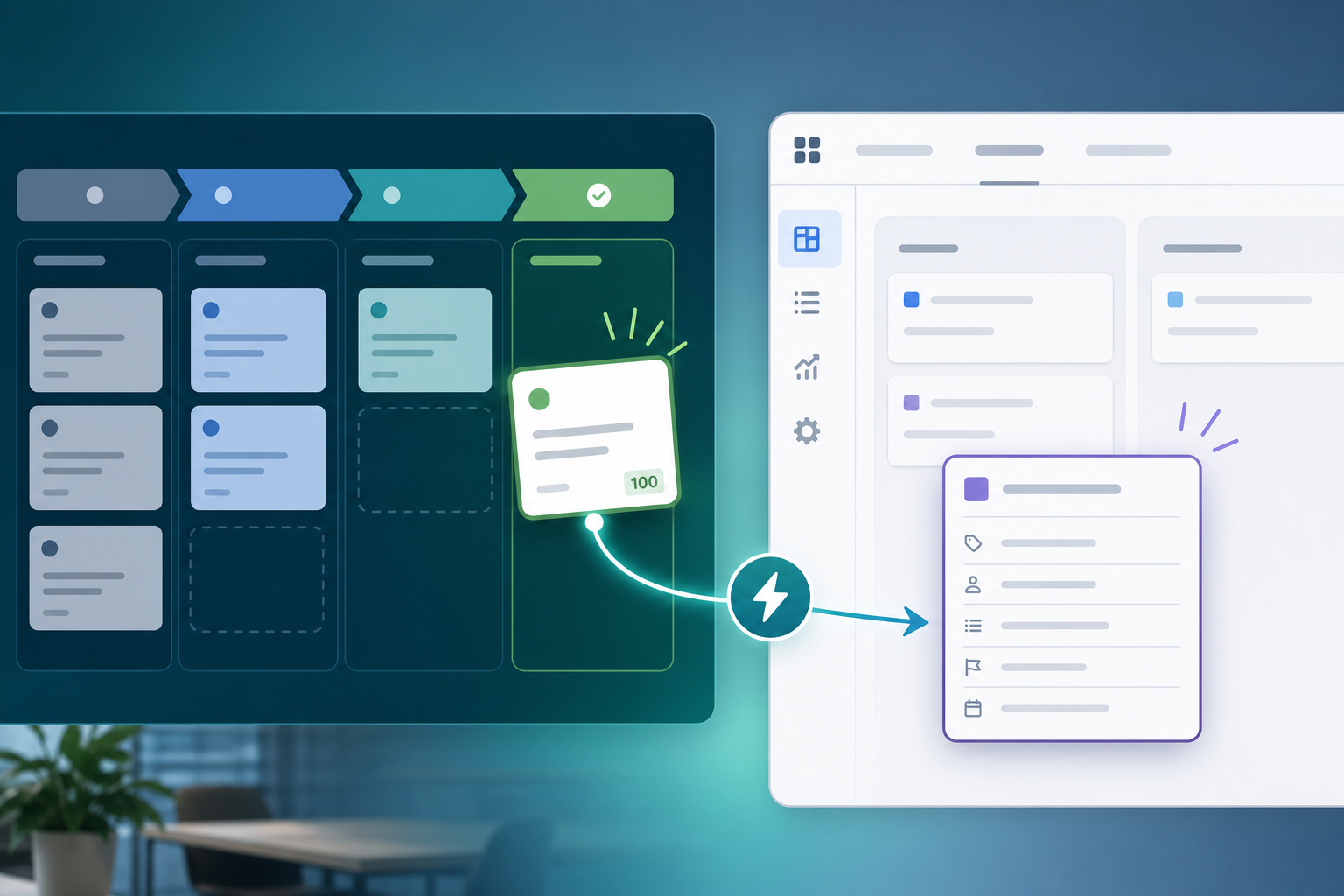
Implementation manager configuring Pipedrive deal won trigger automation that creates a pre-filled Jira onboarding epic with mapped deal fields

How to Auto-Create Jira Issues from Pipedrive Deals (Without Copy-Paste)

The deal moves to Won in Pipedrive at 4:47 p.m.

By 4:52, sales posts in Slack: "Please create the onboarding ticket." Implementation opens Jira, picks the onboarding project, selects Epic, copies the deal title, pastes value and contact from Pipedrive, and skips three custom fields because they do not fit cleanly into the description box. Monday's sprint planning surfaces the missing integration tier — still sitting in a Pipedrive custom field nobody mapped.

That is what create Jira issue from Pipedrive deal automation is meant to remove. Not another notification. A rule that creates the right Jira work, with the right fields, when the deal hits the stage your process already defines.

"Can you create the Jira epic when it's won — same fields every time?"

That sentence is your automation spec. Everything below translates it into configuration, testing, and the admin checks that keep Pipedrive Jira automation reliable.


What You Are Trying to Accomplish

You want Jira work to appear when a Pipedrive deal reaches an agreed event — without a human opening both tools and copy-pasting.

A workable automate Jira from Pipedrive workflow should:

  1. Fire on a defined trigger — deal created, specific pipeline stage, or deal won.
  2. Create a Jira issue in the correct project and issue type.
  3. Pre-fill mapped deal fields — commercial context delivery needs on day one.
  4. Link the records so updates and status can flow both ways, if your integration supports it.
  5. Expose health signals so admins know when webhooks fail silently.

The goal is not "connect two logos." It is to replace manual issue creation with a repeatable rule your sales and delivery teams already agree on.

Requirements Before You Configure Anything

Gather these before opening admin settings.

Jira side

  • Jira Cloud site with permission to install Marketplace or Forge apps (verify compatibility on the listing at evaluation time).
  • A target project and issue type for new handoff work — onboarding epics, implementation tasks, or service requests.
  • Agreement on default assignee or queue — automation should not create unowned work.
  • Optional: Jira custom fields if deal data should be structured for search and dashboards, not only narrative description text.

Pipedrive side

  • Admin access to create or authorize an API token with deal read permissions.
  • A documented trigger rule — which pipeline stage or status starts delivery work.
  • A minimum field list sales must populate before the trigger fires (see The Sales-to-Delivery Handoff Gap for why this matters).
  • Sandbox or test deals for validation.

Process side

  • One owner who signs off on field mapping and duplicate prevention behavior.
  • A plan for post-creation changes — will deal updates refresh a live panel, post comments, or require manual re-sync?

Platform facts: Pipedrive documents webhooks for deal change events. Jira Cloud's REST API supports creating issues with summary, description, project, issue type, and custom fields. An integration sits between those two systems.

Five decisions to document first

  1. Trigger event — created, stage, or won.
  2. Target project and issue type — where handoff work lands.
  3. Minimum Pipedrive fields — what sales must complete before the trigger is valid.
  4. Jira field mapping — summary, description sections, and any Jira custom fields.
  5. Duplicate policy — what happens if the same deal fires twice.

Write these in a one-page runbook before touching admin settings. Configuration goes faster when the process argument is already settled.

Step 1: Choose the Right Trigger

Trigger choice is a delivery process decision, not a technical default.

TriggerBest whenWatch out for
Deal createdEvery new opportunity should spawn a lightweight Jira placeholder earlyFloods delivery with immature deals; needs strict pipeline filters
Deal reaches pipeline stageDelivery starts at a named stage (for example, "Contract signed" or "Handoff")Stage naming discipline required; wrong stage fires too early or late
Deal wonWork starts only after revenue is closedLate if onboarding already began in email; ensure sales completes fields before Won

Most Pipedrive deal won Jira automations use the won trigger because delivery officially starts at close. Teams with long legal or provisioning phases often prefer a specific stage instead.

Write the rule in one line:

"Create a Jira {issue type} in {project} when deal {trigger} AND {optional conditions}."

Example: "Create an Epic in ONBOARDING when deal status becomes Won AND pipeline is Enterprise."

Step 2: Map the Fields That Matter

Copy-paste handoffs fail because teams map title and value, then skip everything implementation asks about in week two.

Start from what delivery actually opens in Pipedrive on day one. Pipedrive's deal documentation covers value, stage, person, organization, owner, and history. Activities often hold the latest call note.

Pipedrive sourceTypical Jira destinationWhy delivery needs it
Deal titleSummaryIdentifies customer and project
Deal value + currencyDescription or custom fieldBudget and scope conversations
Expected close dateDescription or custom fieldPlanning and milestone alignment
Pipeline stage / statusDescriptionConfirms trigger context at creation
Contact personDescriptionWho to email on day one
OrganizationDescriptionAccount identity
Sales ownerDescription or assignee hintEscalation path
Label / source channelDescriptionSegmentation and reporting
Latest activity noteDescriptionPre-sale context beyond title
Custom fields (tier, package, SLA, region)Description or Jira custom fieldsScope details that static paste skips

Custom field vs description

  • Use Jira custom fields when reports, dashboards, or JQL must filter on the value (tier, region, package SKU).
  • Use description sections for narrative notes and infrequently filtered text.
  • If everything lands in description only, you solved day-one copy-paste but not reporting — and the text is still a creation snapshot unless live sync or panels refresh it later.

Backlog Bridge's public Pipedrive Integration for Jira product page describes selecting which extra Pipedrive fields appear in the Jira issue description at creation. Treat that as a vendor claim to verify in trial — your account's custom field names will differ.

What the Created Issue Should Look Like

Generic example after a won-deal trigger (illustrative only):

Summary: Acme Corp — Enterprise onboarding

Description sections:

  • Value: USD 56,000
  • Stage: Won / Enterprise pipeline
  • Contact: Jane Doe (Acme Corp)
  • Owner: Alex (Sales)
  • Package tier: Integration Pro (custom field)
  • Latest note: "Needs SSO + sandbox by week 2"

That shape is what implementation managers expect when they ask to create Jira issue from Pipedrive deal automatically. If your created issues stop at title and value, the automation is only halfway configured.

Step 3: Understand the Automation Flow

Whether you use a Marketplace app, Forge app, or iPaaS middleware, the reliable pattern looks similar:

  1. Deal changes in Pipedrive — stage move, won status, or creation event.
  2. Pipedrive sends a webhook to your integration endpoint (or the app registers one on your behalf).
  3. Integration evaluates rules — does this deal match trigger, pipeline, and filters?
  4. Integration reads deal payload — title, value, person, organization, selected custom fields, latest note.
  5. Integration calls Jira issue create API — project, issue type, summary, description, optional custom fields.
  6. Integration stores the link — deal ID to issue key for later updates, panels, and status sync.

If step 2 fails, no issue appears — even when sales assumes automation is live. That is why webhook health dashboards matter.

Step 4: Configure the Integration

The following steps follow Backlog Bridge's publicly described three-tab admin setup for Pipedrive Integration for Jira. Other apps may differ; verify against your vendor's documentation and Marketplace listing.

Connection tab

  • Enter your Pipedrive company domain and API token (vendor copy describes a shared connection across rules).
  • Confirm token permissions cover deal read access needed for mapped fields.
  • Rotate tokens on the same schedule as other CRM credentials.

Vendor copy claims connection in under five minutes. Field mapping and webhook verification usually take longer — plan admin time accordingly.

Automation Rules tab

For each rule, configure:

  • Trigger type — deal created, deal reaches stage, or deal won (per vendor product page).
  • Target Jira project and issue type.
  • Field checklist — which Pipedrive fields to include in the created issue.
  • Optional: multiple rules if different pipelines route to different Jira projects (verify supported behavior in trial).

This tab is where trigger and field choices become concrete. Two teams with the same app can produce different outcomes based on configuration alone.

Webhook & Status tab

  • Register the Pipedrive webhook — vendor copy describes one-click registration from this tab.
  • Monitor last event received, last processed deal, and last created issue.
  • Look for error indicators when events stop arriving.

Pipedrive webhook delivery can retry or fail if endpoints are unreachable. Admins need visible failure signals — not a silent gap discovered by sales in Slack.

Step 5: Validate With Test Deals

Run these before enabling production pipelines:

Test A — Happy path

  1. Create or use a sandbox deal that matches your trigger.
  2. Fire the trigger (move stage or mark won).
  3. Confirm a Jira issue appears in the correct project and type within expected latency.
  4. Open the issue and verify every mapped field — especially custom fields and latest note.

Test B — Field completeness

  1. Intentionally leave an optional custom field empty.
  2. Confirm behavior matches expectations (blank line vs blocked creation).
  3. Adjust sales minimum-field policy if gaps are unacceptable.

Test C — Duplicate and repeat events

  1. Repeat the triggering action or replay webhook delivery if your admin tools allow it.
  2. Confirm whether a second issue is created or deduplicated.
  3. Document behavior for your runbook.

Test D — Webhook failure drill

  1. Note current "last event received" timestamp on the status tab.
  2. Temporarily break connectivity (revoked token or disabled webhook) and fire a test deal.
  3. Confirm the status tab surfaces failure — not silent absence.
  4. Restore connection and confirm the next event processes.

Also verify linked live deal panel behavior if your integration provides one — vendor copy for Backlog Bridge describes live fetch when the issue is opened, which complements one-time issue creation but does not replace mapping at create time.

Common Pitfalls

Wrong trigger timing. Won-only rules start work after email threads already opened. Stage-based rules fire before finance marks revenue. Align with sales leadership first.

Description-only mapping. Values pasted into description text resist reporting and go stale. Decide what must be Jira custom fields.

Missing custom fields. Implementation tiers, SKUs, and SLA fields live in Pipedrive custom fields — not the deal title. Map them explicitly.

"Which integration tier did they buy?"

If that question still sends delivery back to Pipedrive after automation, tier was never mapped.

Treating create as full sync. Issue create solves day-one copy-paste. Post-handoff deal changes still need comment sync, live panels, or manual updates.

No webhook monitoring. Automation looks enabled while events stopped weeks ago. Check health indicators after Pipedrive admin changes or token rotation.

Duplicate issues. Webhook retries or repeated stage moves can create twin epics. Confirm deduplication behavior before high-volume pipelines.

Skipping permissions review. Commercial deal data on Jira issues may be visible to users who should not see pipeline value. Review project roles before connecting production CRM data.

Admin and Security Considerations

Connecting CRM tokens to Jira is an admin decision:

  • Token custody — who owns the Pipedrive API token, rotation policy, and least-privilege scope?
  • Visibility — which Jira users can see linked deal value, contacts, and notes?
  • Data handling — read vendor privacy statements and Marketplace security tabs if procurement requires them (not verified in this article; verify at install time).
  • Failure mode — who owns manual fallback when webhook delivery fails?

No Atlassian Marketplace listing URL was provided in editorial metadata for this article, and listing details were not verified at the time of writing (July 2026). Search Marketplace for the app name and verify current pricing, hosting, scopes, and privacy tabs before installation.

Do not treat vendor marketing copy as procurement evidence. Confirm behavior with reproducible test deals.

When to Use a Different Approach

Low deal volume. Manual creation with a standardized Jira template may suffice until copy-paste becomes a weekly tax.

Heavy custom logic. Complex branching — multiple issue types per product line, dynamic component mapping — may need iPaaS or custom middleware with higher maintenance.

Non-Jira delivery. Teams that track delivery entirely in Pipedrive Projects may not need Jira issue create automation until engineering work starts.

Context-after-create pain. If the primary gap is stale deal data after day one, prioritize live panels and update sync — not just the create trigger.

Put the Rule in Writing Before the Next Won Deal

Create Jira issue from Pipedrive deal automation succeeds when the trigger and field map are agreed before anyone opens admin settings.

Pick the event that matches your sales process. Map the fields delivery actually uses in week two, not just title and value. Register webhooks, test with sandbox deals, and monitor health after go-live.

When copy-paste cannot keep up with won deals, evaluate structured integration against the same checklist — and verify every vendor claim in trial rather than at procurement slide depth.

See how Pipedrive Integration for Jira approaches trigger-based issue creation, field selection, webhook status, and live deal context for teams ready to test automation in sandbox.

For why manual handoffs lose context in the first place, read The Sales-to-Delivery Handoff Gap.