• Jul 14, 2026
  • 12 min read
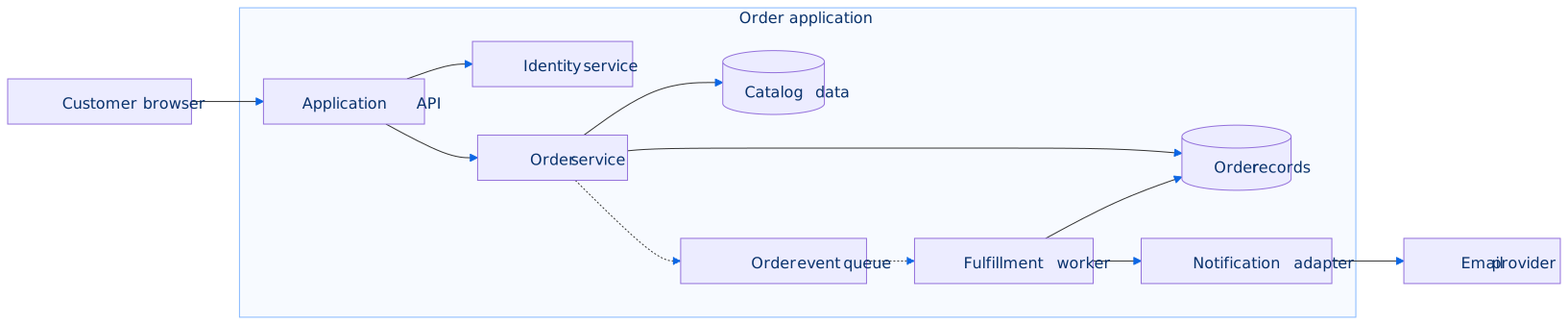
Architecture team reviewing a layered Mermaid system diagram with subgraph boundaries, wide reader navigation, and a source editor in Confluence

Architecture Diagrams in Confluence: Keeping Mermaid Source Reviewable

The architecture review started with a diff, not a whiteboard.

Someone had renamed three services, moved a queue behind a new subgraph, and added a dashed fallback path. The rendered diagram still looked fine on the Confluence page. The Mermaid source did not.

Reviewers scrolled through eighty lines of node aliases, inconsistent prefixes, and a subgraph titled Group1. Nobody could tell whether svc_pay and payment_svc were the same component.

That is the gap behind Mermaid architecture diagrams Confluence teams hit after the first diagram ships. Rendering works. Reviewable diagram source does not happen by accident.

"Can we review the architecture change without asking the author to walk us through the file?"

This how-to shows how to structure Mermaid architecture diagrams with stable node IDs, subgraphs, naming conventions, and focused scope — and how Confluence reader tools help when diagrams grow wider than the page column.


Quick Answer

  • Separate source review from render review. Readable boxes on the page do not guarantee diff-friendly Mermaid source.
  • Pick the diagram type for the question. Use flowchart LR for topology; use sequenceDiagram for call order; treat architecture-beta as a render check.
  • Use stable IDs and readable labels. IDs stay constant across reviews; labels carry service-catalog names.
  • Use subgraphs for real boundaries. Team, tier, environment, or zone — not decorative grouping.
  • Split before you decorate. One overview diagram plus detail diagrams beat one unmaintainable map.
  • Preview while editing. Any Confluence Mermaid macro with live preview catches syntax and layout problems early.
  • Navigate during review. Search, wide view, and minimap help reviewers find services by name in large left-to-right diagrams.

BacklogBridge Diagram Lens for Confluence is one macro built for source-first Mermaid with live preview, wide reader, search, minimap, and export. Verify the current Marketplace listing before install.

Source Review vs Render Review

Two different questions show up in the same meeting.

QuestionWhat reviewers inspectWhat good looks like
"Does the diagram still render?"Page view, export, printNo syntax errors; labels readable at a glance
"Can we review what changed?"Mermaid source diff, commentsStable IDs; meaningful subgraph labels; scoped files
"Can a new reviewer navigate it?"Search, pan, minimapConsistent naming; focused scope; overview + detail links

Authoring discipline solves the second and third rows. Reader tools help when the diagram is already structured well but physically large.

What You Are Trying To Accomplish

You want Confluence architecture pages where:

  • Mermaid source diffs explain what changed in a review
  • node names match how engineers talk about systems
  • Mermaid subgraphs express ownership or environment scope
  • reviewers can find Orders API or Retry queue without author guidance
  • authors apply feedback as text edits, not redraws

The outcome is an architecture artifact that stays maintainable after the original author rotates off the team.

Place overview diagrams on parent pages and link detail diagrams for request paths, data stores, or deployment zones. Confluence holds the source in page macros — not in a synced external repository unless your team chooses a different tool category.

Requirements

RequirementWhy it matters
Confluence Cloud space for architecture docsDiagrams live beside ADRs and runbooks
Team naming convention for node IDsStable diffs and search hits
Mermaid macro with preview and saveCatches syntax and layout problems early
Review workflowSource export or page comments for change tracking
Admin approval for Marketplace macrosSite admins install through Connected Apps

Step 1: Choose The Right Diagram Type

Architecture questions are not all the same shape.

Documentation questionBetter Mermaid type
"What connects to what in production?"flowchart LR or architecture-beta
"Which team owns which tier?"flowchart with subgraphs
"In what order do services call each other?"sequenceDiagram
"What entities relate in the data model?"erDiagram
"What runs in which environment?"Subgraphs by environment, or separate diagrams per env

The Mermaid documentation describes diagrams defined as text and code. For Confluence architecture diagrams, flowchart LR remains the most portable choice because it renders predictably across Mermaid versions and strict Confluence macros.

Backlog Bridge's Mermaid chart tips guide describes architecture-beta for infrastructure sketches. Preview beta syntax in your target macro before publishing broadly — some renderers lag newer Mermaid diagram types.

Step 2: Define Stable Node IDs And Naming Conventions

Use short machine-friendly IDs and put readable names in labels.

flowchart LR
    actor_user["Customer"]
    svc_gateway["API Gateway"]
    svc_orders["Orders Service"]
    db_orders[("Orders DB")]

    actor_user --> svc_gateway --> svc_orders --> db_orders
RuleExample
Use role prefixessvc_, db_, queue_, external_, actor_
Keep IDs lowercase snake_casesvc_billing, not Billing Service v2 as the ID
Put readable names in labelssvc_billing["Billing Service"]
Quote labels with Mermaid keywordsend_node["End"] instead of a bare end node ID collision
Match service catalog names in labelsAlign with internal registry where possible

Stable IDs help three review workflows:

  1. Diff review — edges reference IDs, not relabeled display text.
  2. Search in rendered diagrams — reviewers search label text; consistent labels improve hit quality.
  3. Targeted edits — "Add Redis between svc_orders and db_orders" is precise.

Backlog Bridge's knowledge-base guidance recommends predictable prefixes when teams revise Mermaid source with AI tools — the same rules help human reviewers interpret diffs.

Bad vs good review comments

Bad — labels drift, IDs unclear:

"Fix the payment box on the right."

Good — stable ID, actionable:

"Rename label on svc_billing to match the service catalog; keep the ID."

Step 3: Use Subgraphs For Real Boundaries

Subgraphs should express ownership, environment, or tier boundaries — not decorate unrelated nodes.

flowchart LR
    subgraph edge["Edge / Public"]
        svc_gateway["API Gateway"]
        svc_cdn["CDN"]
    end

    subgraph app["Application tier"]
        svc_orders["Orders Service"]
        svc_billing["Billing Service"]
        queue_events["Event queue"]
    end

    subgraph data["Data tier"]
        db_orders[("Orders DB")]
        db_ledger[("Ledger DB")]
    end

    svc_cdn --> svc_gateway
    svc_gateway --> svc_orders
    svc_gateway --> svc_billing
    svc_orders --> queue_events
    svc_orders --> db_orders
    svc_billing --> db_ledger
Subgraph useGood boundary labelAvoid
Team ownershipPayments team, Platform teamGroup1, Stuff
EnvironmentProduction, StagingMixing prod and staging nodes in one subgraph
Network zoneDMZ, Private subnetNested subgraphs four levels deep
Lifecycle phaseCurrent state, Target stateOne diagram mixing current and target without labels

The Mermaid flowchart syntax docs describe subgraphs as grouping nodes. If you need deeply nested boundaries, split into an overview diagram and a detail diagram instead.

Step 4: Keep Scope Focused

Reader tools help large diagrams. They do not replace scope discipline.

SymptomBetter approach
More than 15–25 nodesOverview diagram + detail diagrams
Mixed deployment, data model, and request flowSeparate diagram types per concern
Many crossing arrowsSplit by module, phase, or ownership
Every review starts with "ignore the left half"Remove or move the ignored half
Temporary dependencies survive quartersMark deprecated with classDef or remove

A practical documentation set on one Confluence parent page often uses several macros or child pages with logical names such as:

01_context_overview
02_request_path
03_data_stores
04_async_events
05_deployment_zones

Each diagram answers one review question. Link them from the parent architecture page so reviewers know which file to open.

Step 5: Style Meaning, Not Decoration

Use classDef when color communicates category — internal service, storage, external dependency, deprecated component.

flowchart LR
    svc_api["API"]
    db_main[("Database")]
    external_pay["Payment provider"]

    svc_api --> db_main
    svc_api --> external_pay

    classDef service fill:#e8f0ff,stroke:#3157a4,stroke-width:1px;
    classDef storage fill:#f7f7f7,stroke:#555,stroke-width:1px;
    classDef external fill:#fff8dc,stroke:#b8860b,stroke-width:1px;

    class svc_api service;
    class db_main storage;
    class external_pay external;

Use linkStyle sparingly for fallback or deprecated paths, and add a source comment noting which edge index is styled — edge order changes can silently restyle the wrong link.

Add accTitle and accDescr when your renderer supports them for shared architecture pages.

Step 6: Author And Review In Confluence

Syntax and layout problems are cheaper to fix while authoring than during a review meeting. Navigation problems appear when LR diagrams outgrow the page column.

Authoring loop

After an admin installs an approved Mermaid macro:

  1. Paste a minimal skeleton with declared nodes and one subgraph.
  2. Confirm labels render with readable aliases.
  3. Add edges in small batches; preview after each batch.
  4. Open wide view if the diagram exceeds the page column.
  5. Save, reopen, and confirm stored configuration matches preview.

Diagram Lens offers a source editor with live preview and line/character counts for source size. Diagram Lens support docs recommend starting from a small known-good diagram and using the syntax error panel for line, column, and token details when render fails. The same authoring loop applies to any preview-capable Mermaid macro.

Map review questions to tools

Architecture review questionAuthoring disciplineReader tool
"What changed in this release?"Stable IDs; small diffsMermaid source export
"Where is the retry queue?"Consistent queue_ labelsSearch in rendered SVG
"How does this cluster relate to the gateway?"Subgraph boundariesMinimap + pan
"Can I read labels without browser zoom?"Split overview/detailWide view + diagram zoom
"Can I fix a label from review?"ID/label separationSource editor + live preview

Diagram Lens public copy highlights search across rendered SVG text, minimap navigation with a viewport rectangle, and a wide reader with pan, zoom, fit, reset, and typed zoom. These features reward good naming — search works best when labels match the language reviewers already use in design reviews.

Suggested review agenda:

  1. Confirm subgraph boundaries match team or environment ownership.
  2. Search for three critical services reviewers ask about every time.
  3. Walk one primary path left-to-right without author narration.
  4. Check deprecated or external dependencies are visually distinct.
  5. Record open questions as page comments referencing node IDs.

Example reviewer comment:

"Move queue_events inside the app subgraph — the queue is owned by the application tier, not edge."

Common Pitfalls

PitfallBetter approach
Display names used as node IDsStable ID + readable label
Subgraphs as decorationBoundaries that match ownership or environment
One diagram for everythingOverview + focused detail diagrams
Inconsistent prefixes (svc_pay vs payment_svc)Team convention linked from architecture space home
HTML labels or click syntaxPlain labels for predictable Confluence rendering
Skipping preview on large editsPreview after each subgraph or edge batch
Treating reader tools as scope substitutesSplit before adding the twentieth node

Backlog Bridge's knowledge-base page notes that Diagram Lens-safe examples avoid source-defined interactivity and raw markup patterns — appropriate for shared architecture spaces.

Admin Checks Before Rollout

Atlassian's Manage your apps documentation says Confluence apps are usually installed from Marketplace through Connected Apps and require site admin access.

At the time of research on July 14, 2026, I did not find an official Atlassian Marketplace listing for BacklogBridge Diagram Lens for Confluence through available public sources in sibling editorial research. Search Marketplace again before install.

CheckWhy it matters for architecture docs
Listing name, vendor, Cloud compatibilityWrong app or hosting model blocks rollout
Install scopes and egressArchitecture source may name internal services and hostnames
Source-size limitsLarge maps with many subgraphs hit limits sooner
Export pathsReviewers may require SVG or source, not PNG
Sanitization behaviorPlain labels are safer than HTML or click syntax
Data classification for allowed spacesStored Mermaid source may describe internal topology

The public Diagram Lens security page describes client-side rendering, storage:app scope, no external egress declared in the current manifest, and strict Mermaid sanitization. For a fuller macro security review, see Mermaid Macro Security in Confluence.

Do not infer SOC 2, ISO, Cloud Fortified, GDPR/DPA, or procurement approval without explicit published evidence.

When To Use A Different Approach

Choose structured Mermaid source when architecture diagrams must change with the system and pass review as text.

Trial Checklist

Test with one real architecture diagram your team reopens every quarter — not a toy three-box sketch.

  1. Create a Confluence parent page in your architecture space.
  2. Insert the Mermaid macro and define stable prefixed node IDs.
  3. Add subgraphs for two real boundaries (team, tier, or environment).
  4. Draft an overview with fewer than 20 nodes; link a detail diagram on a child page or second macro.
  5. Preview after each structural change; fix syntax with the macro's error panel if available.
  6. Open wide view and search for two service names reviewers use in meetings.
  7. Use the minimap to jump between distant clusters.
  8. Make one small source edit from review feedback; confirm live preview.
  9. Export Mermaid source and SVG; test PNG only if your handoff requires it.
  10. Ask a second reviewer to find one component by name without author guidance.

Final Recommendation

Mermaid architecture diagrams Confluence workflows stay reviewable when teams treat source structure as part of the architecture — not as an implementation detail.

Define stable node IDs, use subgraphs for real boundaries, keep scope focused, and style meaning sparingly. Preview while editing, then review with search, wide view, and minimap when diagrams grow wider than the page.

If your team already keeps Mermaid in Confluence and wants source editing plus reader tools for architecture maps, Diagram Lens is worth a focused trial — after you verify the current Marketplace listing, install prompt, and export behavior on your own diagrams.

For deeper Mermaid authoring patterns, see Backlog Bridge's Mermaid chart tips guide.