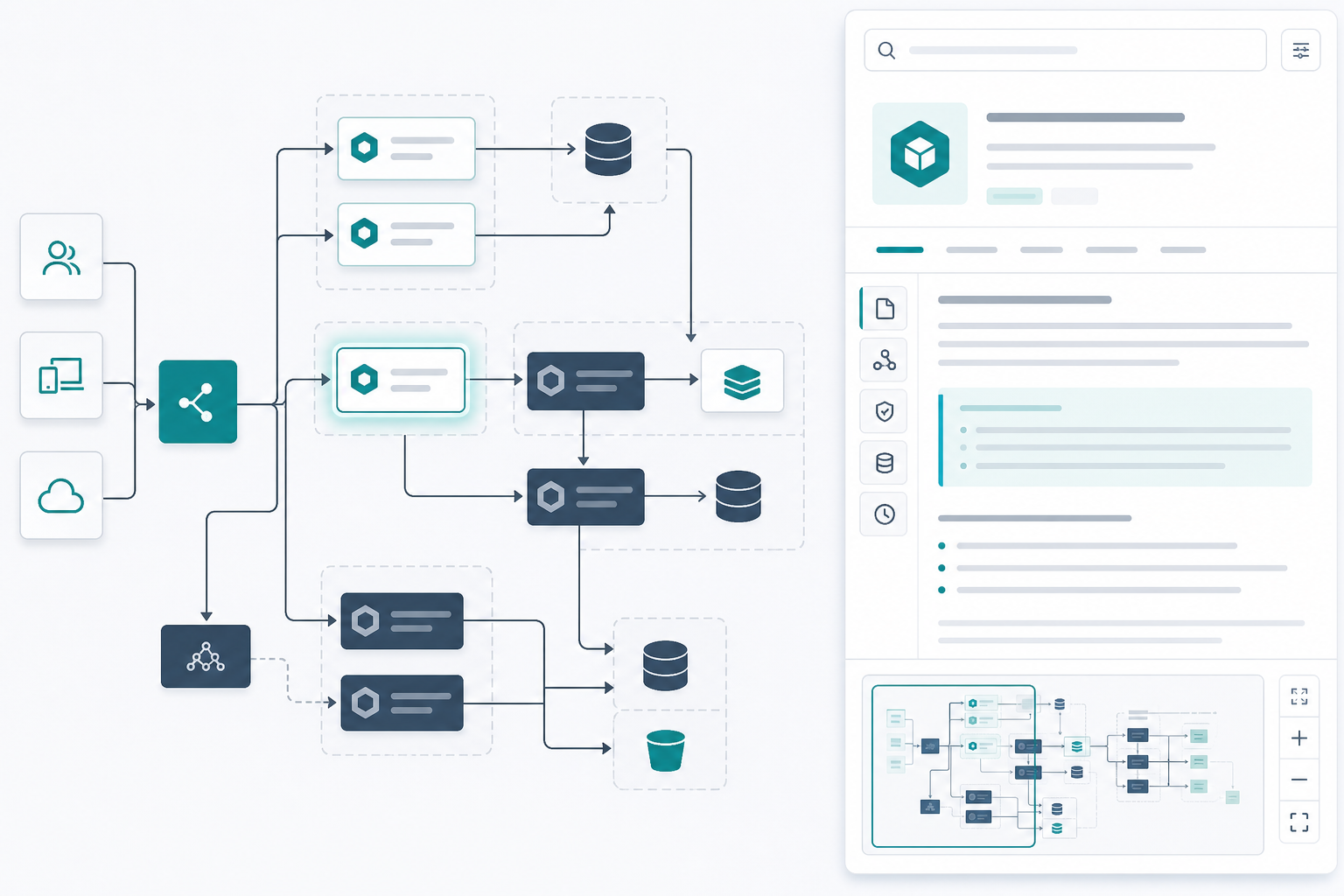
The platform architect opened the Confluence page during the design review and asked a simple question.
"Where does the retry queue connect to billing?"
The diagram had rendered correctly. The label was in the Mermaid source. But the map was wider than the viewport, three boxes all contained the word "worker," and nobody could jump to the right cluster without the author driving a screen share.
That is the everyday failure behind search Mermaid diagrams in Confluence workflows. The diagram exists. The name exists in the graph. The reader still cannot navigate to it reliably during a real review.
"Can you show me where that is?"
That question means the page failed as a reader — not as a renderer.
Quick Answer
When Mermaid architecture, process, and service diagrams grow beyond the visible Confluence page, review questions become name-based:
- "Where is the legacy API?"
- "Which path handles refunds?"
- "Is the audit service still in this flow?"
Teams need to search visible rendered SVG text, highlight the selected match, jump between multiple hits, keep orientation with a Mermaid diagram minimap, and inspect the graph in a wide reader built for large Mermaid diagram navigation.
BacklogBridge Diagram Lens for Confluence public pages describe those reader tools for Confluence Cloud Mermaid macros. Verify the current Marketplace listing before install.
The evaluation question is narrow:
"Can a reviewer who did not author the diagram find a named component, see where it sits in the whole map, and repeat that path next week?"
Review Questions And The Tools That Answer Them
| Reviewer asks… | Primary tool | What good looks like |
|---|---|---|
"Where is Billing Service?" | Diagram search on visible SVG text | Viewport moves to the label; selected match is obvious |
"Which of these three worker nodes?" | Match navigation + selected highlight | Reviewer steps through hits without author pointing |
| "Where is that node in the whole system?" | Minimap with live viewport rectangle | Reviewer names tier or subgraph after one glance |
| "I cannot read labels at page width" | Wide reader + fit/zoom | Labels inspectable before search starts |
| "What changed in the source?" | Source export / diff workflow | Separate from search; see architecture naming guide |
Rendering answers whether the source becomes a diagram. Confluence diagram search answers whether a second reviewer can navigate the result.
Why Manual Scanning Fails On Large Graphs
Mermaid is source-first. The Mermaid documentation describes diagrams defined as text and code — ideal for documentation that changes with the system.
The Mermaid flowchart syntax docs describe graphs with top-to-bottom and left-to-right orientations. Architecture and process maps often grow horizontally. Confluence layout controls — centered, wide, or full-width per Atlassian's layout documentation — help prose. They do not give reviewers a repeatable way to jump to a label, highlight the right match, or stay oriented after panning.
Manual scanning creates three costs documentation owners recognize quickly:
- Meeting delay — discussion stops while someone hunts box by box.
- Author dependency — layout knowledge lives with whoever built the map.
- Shallow review — people stop asking detailed questions because answers are hard to reach.
Those symptoms show up before anyone asks whether the macro can export PNG. They show up the first time someone says a service name and the room waits.
Diagram Search Vs Page Find
Teams often try browser find first. That may surface a string somewhere on the page, including titles, comments, or text outside the diagram. It does not reliably deliver graph-native navigation: centering the match inside a wide SVG canvas, stepping through multiple node labels, or showing where that node sits relative to the rest of the architecture.
Diagram-native search targets visible text in the rendered diagram — the labels reviewers actually read during design reviews.
The public Diagram Lens product page describes search across visible SVG text, jumping between matches, and highlighting selected results. Validate that behavior on your largest production diagrams and with the vocabulary your teams use in meetings — not on a three-box test flowchart.
Selected Match Highlighting And Match Navigation
Search becomes useful when it supports discussion, not just detection.
A practical search loop during review:
- Type the name spoken in the meeting —
Retry queue,Billing,Audit service. - Review visible matches in the rendered diagram.
- Step through hits when the term appears more than once.
- Keep the selected match highlighted while the group discusses that node.
That matters when:
- two workers share a prefix
- a queue name appears in a node label and a subgraph title
- deprecated and replacement services both contain the same product word
Without selected-match highlighting, search turns into "which box was that?" — and the author picks up the screen share again.
Example reviewer comment that search should support:
"Not that worker — the one feeding the billing adapter."
If the second reviewer can land on the correct node by stepping through matches, search is doing real work.
Minimap Navigation After The Jump
Search finds a label. Reviewers still ask:
"Where am I in the overall system?"
Panning a wide left-to-right map is disorienting. You can inspect one cluster and lose track of how it connects to the gateway, data tier, or exception path several screens away.
Mermaid diagram minimap navigation addresses orientation. Diagram Lens public copy describes a minimap with a live viewport rectangle so readers see local detail and global position at the same time.
Typical minimap workflow:
- Search for
Event queueand jump to the highlighted match. - Glance at the minimap to see whether the queue sits in the application tier or edge tier.
- Pan to a related node while the viewport rectangle shows movement against the full graph.
- Fit or reset view before the next review question.
For the broader reader-vs-renderer category, see Mermaid Diagrams in Confluence: Why Big Diagrams Need a Reader. This article focuses on find-in-diagram navigation — search, highlight, and minimap — rather than every reader control.
Wide Reader As The Search Workspace
Search and minimap work best when the viewport is meant for large graphs, not squeezed into a document column.
Diagram Lens public pages describe a wide reader with pan, zoom, fit-to-view, reset, typed zoom percentage, and movement controls. Support docs note that very large diagrams may require wide view, search, minimap, layout presets, or manual zoom and scroll.
Suggested large Mermaid diagram navigation sequence:
| Step | Action | Outcome |
|---|---|---|
| 1 | Open wide reader | Labels large enough to inspect |
| 2 | Fit the overview | Shared starting context for the room |
| 3 | Search a catalog name | Jump to visible label |
| 4 | Step matches + highlight | Correct node selected |
| 5 | Check minimap | Reviewer orients in full graph |
| 6 | Pan to related node | Next question without author tour |
| 7 | Reset or fit | Repeatable path for the next reviewer |
Browser zoom reshapes the whole Confluence page. Diagram-level zoom keeps attention on the graph.
Naming Practices That Improve Search Hits
Search tools reward authoring discipline. They search visible rendered text, not source comments reviewers never see on the page.
Patterns that improve hit quality:
- Put service catalog names in node labels.
- Use stable IDs with readable labels — see Architecture Diagrams in Confluence: Keeping Mermaid Source Reviewable.
- Align spoken vocabulary with diagram labels;
Bill Svcin the graph and "Billing Service" in speech creates friction. - Split overview and detail diagrams before one file contains every subsystem.
Backlog Bridge's Mermaid chart tips guide recommends focused diagrams over maps that require constant zooming to understand the main point. Reader tools extend good structure; they do not replace it.
Trial tip: note labels that fail to match because they exist only in source comments or use inconsistent abbreviations. That feedback belongs in the documentation backlog.
What Search And Minimap Do Not Fix
Diagram search is not scope control and not a different tool category.
It will not help enough when:
- labels are cryptic or inconsistent across teams
- one diagram mixes deployment, data model, and request flow
- reviewers need drag-and-drop canvas editing
- the team needs repository-backed diagram sync
- partial-string searches return so many hits that stepping through matches is slower than splitting the diagram
Diagram Lens public pages position the app as source-first Mermaid editing and state it does not include visual drag-and-drop editing, AI generation, or repository sync.
When the pain is export handoff, see Exporting Mermaid Diagrams From Confluence. When the pain is macro security review, see Mermaid Macro Security in Confluence.
What Admins Should Verify Before Installing
At the time of research on July 16, 2026, I did not find an official Atlassian Marketplace listing for BacklogBridge Diagram Lens for Confluence through available public sources in sibling editorial research. Search Marketplace again before install.
Atlassian's Manage your apps documentation says Confluence apps install from Marketplace through Connected Apps and require site admin access.
Before rollout, verify listing name and vendor, Confluence Cloud compatibility, current pricing or free status, install scopes, external egress declarations, and privacy/security/support links. Trial search and minimap on the largest diagrams in spaces that mirror your data classification rules.
The public Diagram Lens security page describes client-side rendering in Forge Custom UI, storage:app scope, no external egress declared in the current manifest, and sanitized SVG output. The privacy page describes Forge hosted storage for app-owned diagram configuration.
Do not infer SOC 2, ISO, Cloud Fortified, GDPR/DPA, or procurement approval without explicit published evidence.
Trial Checklist: Find-In-Diagram Navigation
Use one diagram that already slows reviews.
- Open page view, then open the wide reader on the same macro.
- Fit the overview so the room shares a starting context.
- Search for a production service name reviewers ask about every quarter.
- If multiple matches appear, step through them; confirm selected highlighting identifies the discussed node.
- Ask a second reviewer to find a different named component without author guidance.
- After each jump, use the minimap to state which tier or subgraph contains the node.
- Pan to a related node one subgraph away; confirm the viewport rectangle tracks orientation.
- Try a partial-string search; note whether too many hits signal a scope problem.
- Record labels that did not match because they were not visible in rendered SVG.
- Capture Marketplace, scope, privacy, and support questions before production use.
If step 5 works consistently, search Mermaid diagrams in Confluence is solving a navigation problem — not merely displaying a graph.
Final Recommendation
Large Mermaid diagrams in Confluence break down when reviewers ask questions by name and the page offers no dependable way to reach the answer. Diagram-native search, selected match highlighting, minimap orientation, and wide reader inspection form one workflow for Confluence diagram search during architecture, process, and service reviews.
If your team already keeps Mermaid source in Confluence and meetings stall on "where is that node?", Diagram Lens is worth a focused trial — after you verify the current Marketplace listing and test find-in-diagram behavior on the maps people actually struggle to navigate. Keep labels consistent, split diagrams that are too broad, and reach for sibling articles when export, security, or general reader fit is the primary pain rather than named-label navigation.