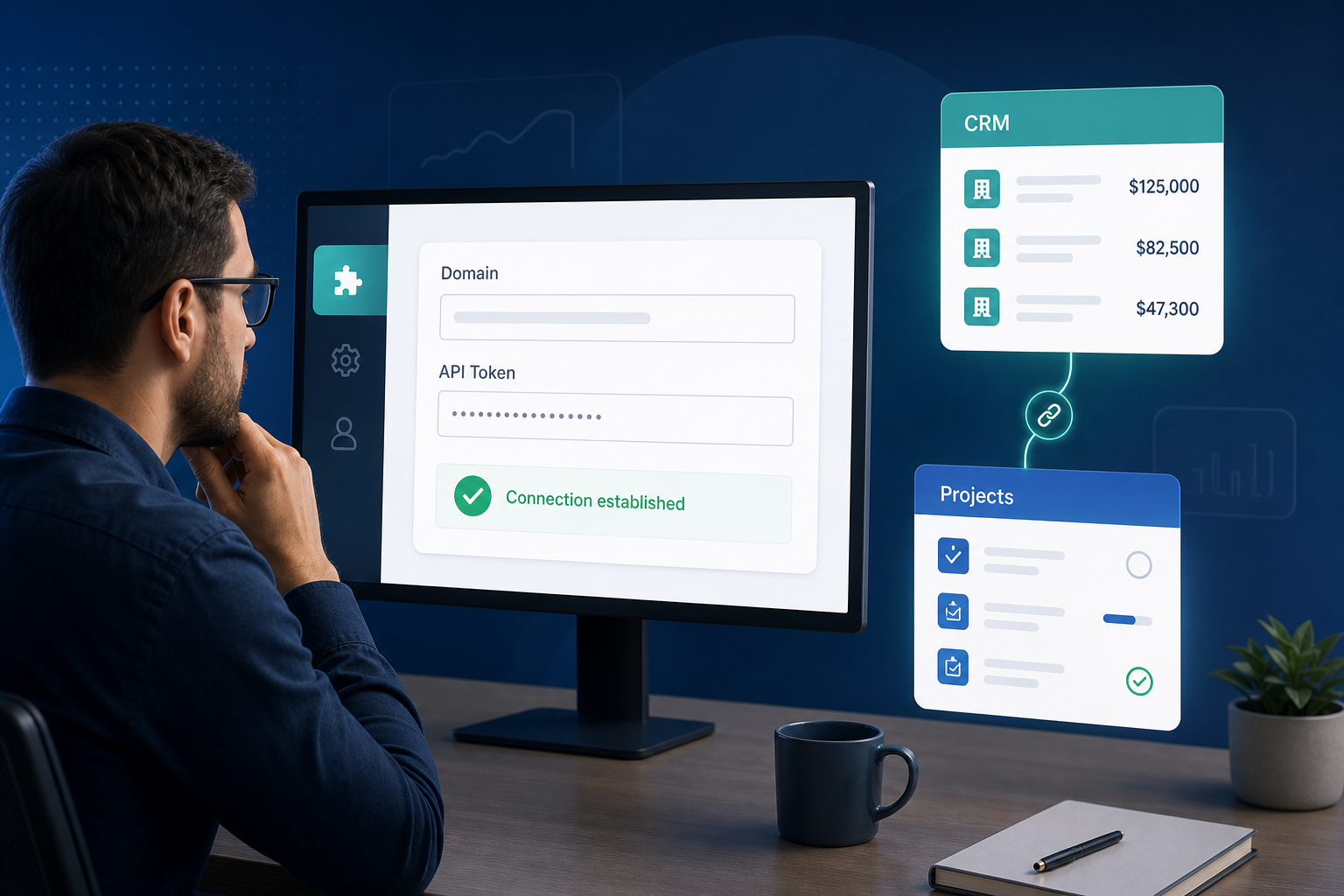
Sales asks you to connect Pipedrive to Jira by Friday.
You open the integration admin page, paste the API token the VP of Sales emailed from their personal Pipedrive account, enter pipedrive.com as the domain because that is what the login page shows, and click save. The Connection tab turns green. Automation Rules and webhook registration proceed. Two weeks later, the sales rep leaves. Their token is revoked. Issue creation stops. The live deal panel goes empty. Nobody remembers whose token was used.
That is what Pipedrive API token Jira integration setup looks like when admins treat the Connection tab as a one-time paste field instead of a credential governance decision.
"We connected Pipedrive — why did everything break when Alex left?"
Because Pipedrive domain Jira integrations authenticate as a specific Pipedrive user. The token is not a generic plug. It is that user's API access key.
Quick Answer
Before you connect Pipedrive to Jira, verify three things on the Connection tab: the correct Pipedrive company domain (subdomain only), an API token owned by a durable service account — not a departing rep — and permissions sufficient for deal reads, custom fields, and any reverse sync paths you plan to enable.
Connection is step one. Backlog Bridge's public product materials describe a three-tab setup: Connection, Automation Rules, then Webhook & Status. Valid credentials must exist before rules or webhooks mean anything.
Document token ownership and rotation. Add "update Pipedrive Integration Connection tab" to every CRM credential rotation checklist.
Buying Context
Jira admins and operations leads usually encounter requests to connect Pipedrive to Jira after handoff pain — wrong deal values in epics, missing onboarding issues, sales chasing delivery status in Slack.
The install or trial request sounds simple: "Connect our CRM." The admin work is not simple. You are authorizing a third-party app to:
- Read commercial deal data from Pipedrive using an API token you provide.
- Write that data into Jira issues, comments, and sidebar UI.
- Potentially write activities back to Pipedrive when Jira status changes.
The Connection tab is where that authorization starts. Getting domain, token, and ownership wrong creates failures that surface weeks later — often as "automation stopped" rather than "Connection tab misconfigured."
What the Connection Tab Configures
Public vendor copy for Pipedrive Integration for Jira describes the Connection tab as the place to enter Pipedrive domain and API token. One connection powers all automation rules.
| Tab | Purpose |
|---|---|
| Connection | Pipedrive domain + API token — shared credentials |
| Automation Rules | Triggers, Jira project, issue type, field mapping |
| Webhook & Status | Webhook registration and health monitoring |
Vendor copy claims connection in under five minutes. That may be true for saving domain and token. Mapping fields, validating deal reads, and confirming webhook delivery usually take longer — plan admin time accordingly.
Do not skip Connection verification because the UI shows success. Confirm the integration can actually read a test deal with your mapped custom fields.
Pipedrive Company Domain
Your Pipedrive domain Jira admin must enter is the company subdomain — the {company} part of https://{company}.pipedrive.com.
Common mistakes:
- Entering
pipedrive.comor the full URL instead of the subdomain. - Using a sandbox company domain while production deals live in a different account.
- Confusing partner or login marketing URLs with your CRM account subdomain.
Ask the Pipedrive admin for the exact subdomain from their browser address bar after login. Confirm deal URLs in your account match https://{subdomain}.pipedrive.com/deal/{id}.
Pipedrive API Token
Pipedrive documents API authentication using an API token associated with a Pipedrive user. Pipedrive's support article How can I find my personal API key? describes locating the token in personal API settings — verify current menu labels in your account.
For Pipedrive Jira admin setup, treat the token as integration infrastructure.
Personal token vs integration service account
| Approach | Advantage | Risk |
|---|---|---|
| Sales rep's personal token | Fast to obtain on day one | Breaks on offboarding; visibility follows one rep's pipelines |
| Dedicated integration user | Durable ownership; clearer audit trail | Requires Pipedrive admin to create user and set visibility |
| Shared admin token | Broad visibility | May exceed least privilege; harder to rotate safely |
Prefer a dedicated Pipedrive user — for example integrations@yourcompany.com — whose account stays active and whose pipeline visibility matches automation scope.
The token inherits that user's Pipedrive visibility. If the token user cannot see a pipeline, the integration cannot read deals in that pipeline.
What permissions does the integration need?
Exact minimum access depends on your automation configuration. At evaluation time, confirm the token user can:
- Read deals in pipelines you will automate — including custom fields in your mapping list.
- Read persons and organizations if contact and company fields map to Jira.
- Read activities or notes if latest-note mapping or live panel note fields are enabled.
- Create activities if you enable Jira status → Pipedrive activity sync — see Pipedrive Activities API and verify in sandbox.
Pipedrive API tokens reflect the owning user's role and visibility rather than fine-grained per-scope toggles in all setups. Work with your Pipedrive admin to align token user access with least privilege your security team accepts.
Token custody rules
- Name an owner on both Jira and Pipedrive sides.
- Store the token in a password manager or secrets process — not Slack threads or email.
- Never publish tokens in articles, tickets, or screenshots.
- Rotate on the same schedule as other CRM credentials.
- Update the Connection tab the same day a token rotates.
What Connection Credentials Power
One Connection tab entry typically backs multiple integration paths:
| Capability | Uses Connection token? | Symptom when token fails |
|---|---|---|
| Issue create on deal trigger | Yes — reads deal payload | No new Jira work after trigger |
| Live deal panel on issue open | Yes — API fetch on open | Panel empty or stale |
| Deal-update Jira comments | Yes — reads changed deal fields | CRM updates; issue thread silent |
| Jira status → Pipedrive activity | Yes — writes activities | Reverse sync stops |
| Webhook event processing | Yes — reads deal after webhook | Events received but no Jira action |
If multiple features fail simultaneously after an admin change, suspect Connection credentials before debugging individual rules.
For panel behavior, see Why Delivery Teams Need a Live Pipedrive Panel Inside Every Jira Issue. For deal-update sync, see When a Pipedrive Deal Changes, Should Jira Get a Comment or a Field Update?. For webhook recovery after token rotation, see Pipedrive Webhooks for Jira: An Admin Setup Checklist That Actually Works.
Pre-Connection Checklist
Complete before entering production credentials.
Jira side
- Confirm Jira Cloud and permission to install and configure the integration app.
- Identify who may access integration admin settings after install.
- Agree which Jira projects will receive automated issues and commercial data.
- Prepare a sandbox project for credential validation.
Pipedrive side
- Confirm Pipedrive admin can create or authorize the integration user.
- Document the correct company subdomain.
- Create or designate the token owner account with pipeline visibility matching automation scope.
- Generate API token; store in secrets process.
- List custom fields automation must read — tier, SKU, region, SLA.
Process side
- Assign cross-system owner for Connection tab updates.
- Add Connection tab update to token rotation runbook.
- Define visibility policy — which Jira roles may see deal value and contacts on issues.
- Plan sandbox validation before production pipelines carry revenue deals.
Questions to Ask Before Accepting a Token From Sales
Sales teams often forward the fastest path, not the durable one. Ask:
- Which Pipedrive account subdomain are we connecting — production or sandbox?
- Whose user account generated this token, and will that account stay active?
- Can that user see every pipeline we plan to automate?
- Does this token cover custom fields in our handoff checklist?
- Who updates Jira when we rotate CRM credentials?
If any answer is unclear, pause Connection setup until Pipedrive admin confirms.
Connection Tab Validation Drills
Run in sandbox before production connect.
Drill A — Domain and token sanity
- Enter subdomain and token on Connection tab.
- Save and note success indicator per app UI.
- Confirm Automation Rules tab can load pipelines and stages — vendor copy claims they load automatically after connection.
- If loading fails, re-check domain spelling and token user pipeline access.
Drill B — Deal read completeness
- Create sandbox deal with every custom field in your mapping list populated.
- Trigger linked issue creation or open a linked issue with live panel enabled.
- Confirm mapped fields appear in the created issue, panel, or both per your configuration.
- Document any fields that fail — often a token visibility or field-key mismatch.
Drill C — Token rotation simulation
- Note current integration behavior with a test deal.
- Revoke token in Pipedrive without updating Connection tab.
- Confirm integration surfaces failure — panel empty, webhook processing stalled, or explicit error.
- Enter new token on Connection tab and confirm recovery.
Drill D — Wrong domain
- Temporarily enter an incorrect subdomain in sandbox.
- Confirm failure is visible before someone assumes production is connected.
Token Rotation Runbook
When Pipedrive rotates or revokes the integration token:
- Generate new token for the integration user in Pipedrive.
- Open Jira integration admin → Connection tab.
- Replace token; save.
- Run sandbox deal trigger or open linked issue to confirm read paths work.
- Check Webhook & Status tab if forward automation is enabled — stale timestamps may indicate webhook processing still affected.
- Log incident if production deals were missed during the gap.
"We rotated the API key in Pipedrive — did anyone update Jira?"
That question belongs in every credential rotation checklist.
Security and Privacy Questions
Connecting CRM tokens to Jira is a procurement and security decision, not only a sales convenience.
Ask before production connect:
- Who can view deal data in Jira issues, comments, and sidebar panels?
- Where does the vendor store domain and token — and who can access admin configuration?
- What do Marketplace privacy and security tabs state, if procurement requires them?
- What Forge or app permissions does install request on Jira — verify on the listing at evaluation time?
- What happens on offboarding if the token user is deactivated?
No Atlassian Marketplace listing URL was provided in editorial metadata for this article, and listing details were not verified at the time of writing (July 2026). Search Marketplace for the app name and verify current pricing, hosting, scopes, and privacy tabs before installation.
Do not treat vendor marketing copy as procurement evidence. Confirm Connection behavior with reproducible sandbox deals.
I did not find a public SOC 2, ISO, GDPR, or DPA claim specific to this app in site materials reviewed for this article. Verify compliance statements on the Marketplace listing or vendor privacy policy if your process requires them.
What Breaks When Connection Fails
| Symptom | Likely Connection cause | Admin action |
|---|---|---|
| Connection green but no deal data | Token user lacks pipeline visibility | Fix Pipedrive user permissions or token owner |
| Everything worked until employee left | Token tied to deactivated user | Reissue token from durable integration account |
| Panel works; create does not | Unlikely Connection-only — check rules/webhooks | Still verify token read scope for mapped fields |
| Wrong company data | Incorrect subdomain | Fix domain on Connection tab |
| Intermittent empty panel | Expired or replaced token; API errors | Verify token status; check errors in trial UI |
Marketplace Checks Before You Install
Because Marketplace URL was not verified in this research run:
- Search for Pipedrive Integration for Jira and vendor Backlog Bridge.
- Confirm Jira Cloud hosting model matches your site.
- Review pricing and trial terms at time of evaluation — pricing can change.
- Read Privacy & Security and Permissions tabs before production CRM connect.
- Note version and last updated signals cautiously — they change.
Limitations and Unknowns
- Exact minimum Pipedrive role for the token user is not documented in public Backlog Bridge copy — verify in sandbox.
- Whether the app supports OAuth instead of personal API tokens is not stated in public materials reviewed here.
- Multi-company or multi-Pipedrive-account connections are not described in public copy.
- Connection success UI may not prove every mapped custom field is readable — field-level validation is still required.
When to Use a Different Approach
iPaaS middleware. Separate Pipedrive and Jira credentials in Zapier, Make, or similar — independent rotation and error monitoring, no vendor Connection tab.
Custom integration. Your team owns token storage, rotation, and audit policies entirely — higher build and maintenance cost.
Low integration depth. If you only need occasional manual issue create, a durable token and Connection tab may be more governance overhead than value.
Configure Connection Like a Credential, Not a Checkbox
Pipedrive API token Jira integration starts on the Connection tab — but the work is domain verification, token ownership, permission alignment, rotation discipline, and visibility review.
Enter the correct subdomain. Assign a durable token owner. Validate deal reads in sandbox. Document rotation. Then move to Automation Rules and webhooks with credentials you can maintain after the sales rep who "just wanted it connected" moves on.
See how Pipedrive Integration for Jira describes Connection tab setup alongside automation rules and webhook health monitoring.
For why handoff context disappears when systems are not connected, read The Sales-to-Delivery Handoff Gap. For trigger and field mapping after Connection works, read How to Auto-Create Jira Issues from Pipedrive Deals.