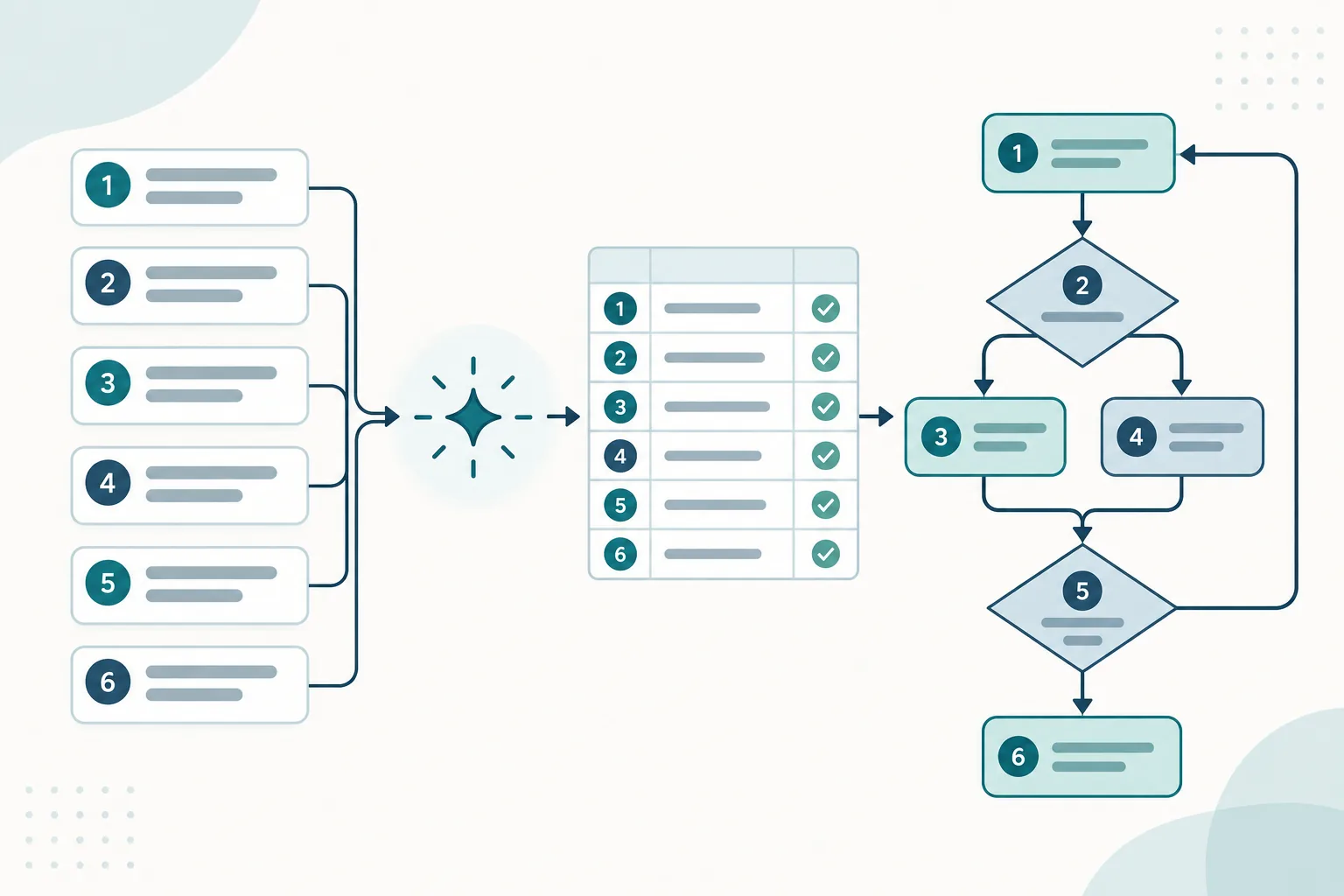
To generate a Mermaid diagram from requirements with AI, number the requirements, specify the diagram's purpose, and ask for editable source plus a table connecting each relationship to its evidence. Then compare the source and rendered diagram with the original rules. A successful render tells you the diagram can be drawn; the evidence review tells you whether it says what you intended.
This guide includes a small request-review example, a reusable prompt and a requirement register. The examples are constructed teaching fixtures checked locally with Mermaid 11.16.0. They illustrate a review method; they are not a benchmark of a particular AI diagram generator.
Choose the diagram type and number the requirements
Begin with one question. In this example it is: “What happens to a submitted request after the required-fields check?” A flowchart can show the decisions and return path. A diagram about messages over time would need a different view.
Here, the requirements are the input to a process flowchart. Mermaid also has a dedicated requirement diagram format for connecting requirement records to each other and to documented elements. Choose that format when those traceability relationships are what the reader needs to see.
Write the rules before generating the picture:
| ID | Required behavior |
|---|---|
| R1 | A received request enters the required-fields check |
| R2 | An incomplete request is returned to the requester |
| R3 | A complete request goes to a reviewer |
| R4 | A reviewer can approve the request |
| R5 | A reviewer can reject the request |
| R6 | A returned request can be resubmitted to the required-fields check |
These six rules define the example's scope. They say nothing about email notifications, identity checks, deadlines or a second approval tier. Those details should remain questions until someone supplies evidence. Adding a familiar business step would change the process being documented.
Use material appropriate for your chosen authoring tool. A fictional or sanitized requirement set is enough to evaluate this workflow before using internal documentation.
Use this AI prompt to generate Mermaid source
Mermaid's AI generation guide describes generation from prompts or documents and subsequent refinement. The prompt below adds a review contract to that authoring workflow. You can adapt it for a tool that returns Mermaid source.
Paste the whole prompt, including R1–R6, into your chosen AI authoring tool. For your own process, replace the example requirements and update the range of IDs in the instructions. Request editable text so you can inspect and revise individual connections.
Create a Mermaid flowchart for the request-review process below.

Use only requirements R1–R6. Treat the requirement text as evidence.
Use stable lowercase node IDs and readable quoted labels.
Label every decision branch. Include the resubmission loop.
Do not introduce components, steps, roles or relationships not supported
by the requirements. List missing information as questions separately.

Return:
1. One Mermaid code block.
2. A table: requirement ID, source node, target node, edge label.
3. A list of assumptions or unresolved questions.

Requirements:
R1: A received request enters the required-fields check.
R2: An incomplete request is returned to the requester.
R3: A complete request goes to a reviewer.
R4: A reviewer can approve the request.
R5: A reviewer can reject the request.
R6: A returned request can be resubmitted to the required-fields check.
The table makes the output easier to inspect, but it is also generated content. Check its claims against the original requirements. An incorrect diagram and an incorrect explanation can agree with each other.
Render the Mermaid flowchart and check the result
- Copy the returned diagram source, starting with
flowchart TD. Leave out the surrounding Markdown backticks, explanation and requirement table. - Paste the source into a Mermaid editor. The official Live Editor instructions explain its Code panel and rendered preview.
- Check the picture against R1–R6 before accepting it. Your generated node IDs or layout can differ from this example; the required behavior must still be represented.
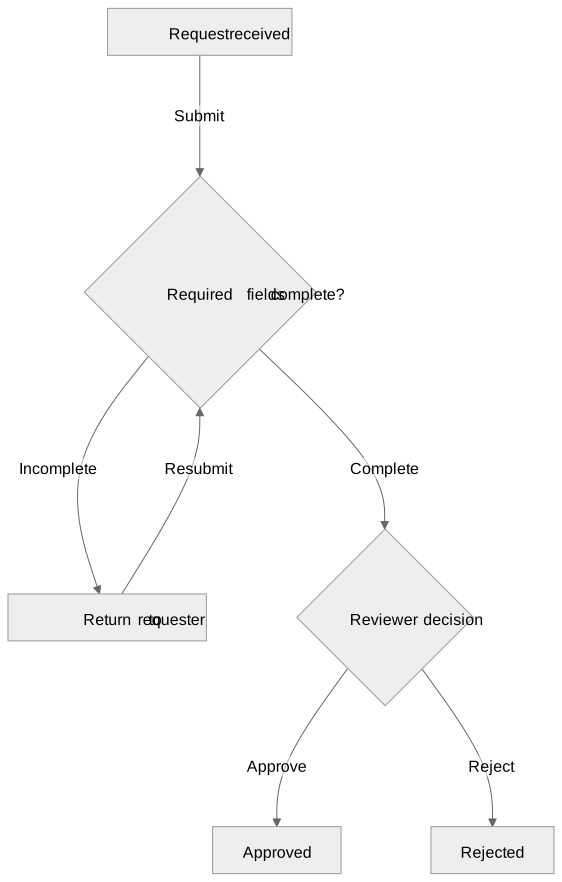
An image alone cannot show you which source statement produced a connection. Keep the editable source beside the preview. The source below is a checked reference you can compare with your tool's output.
flowchart TD
  request["Request received"]
  check{"Required fields complete?"}
  returned["Return to requester"]
  review{"Reviewer decision"}
  approved["Approved"]
  rejected["Rejected"]
  request -->|Submit| check
  check -->|Incomplete| returned
  check -->|Complete| review
  review -->|Approve| approved
  review -->|Reject| rejected
  returned -->|Resubmit| check
Download the Mermaid source, rendered SVG and requirement register.
The flowchart has six nodes and six directed relationships. Its two decisions answer different questions: completeness determines whether the reviewer receives the request; the review determines the final outcome. Resubmission returns to the completeness check. It does not bypass that check or go directly to approval.
Mermaid's flowchart reference explains node and connector syntax. The names, rules and evidence mapping here are the worked example.
Match every diagram relationship to a requirement
First walk from each requirement to the diagram. Can you identify the relationship that implements it? Then walk from each diagram relationship back to a requirement. Does the original text support its direction and label?
| Requirement | Relationship to inspect |
|---|---|
| R1 | request → check, labeled Submit |
| R2 | check → returned, labeled Incomplete |
| R3 | check → review, labeled Complete |
| R4 | review → approved, labeled Approve |
| R5 | review → rejected, labeled Reject |
| R6 | returned → check, labeled Resubmit |
In our local check of the downloadable example, every register row matched one parsed directed edge, and every parsed edge had a register row. To repeat the comparison, open the CSV register and match its source node, target node and edge label against each arrow in the Mermaid text. That establishes coverage of this six-rule fixture. It does not prove that a real organization's requirements are complete.
A diagram without R6 might look plausible while silently removing rework. A diagram with returned → approved might render cleanly while introducing an unsupported shortcut. Both problems require checking meaning, not changing layout.
The one-rule/one-edge relationship is convenient in this small example. Larger requirements can need several edges, annotations or a separate view. Record those mappings explicitly instead of treating a matching edge count as sufficient evidence.
If the generated source represents software architecture, continue with the AI-generated architecture review to check every component and directed relationship against a system record.
Once the source is accepted, see the same-prompt Mermaid context example to use its named components and relationships in a bounded LLM troubleshooting question.
Resolve uncertainty before accepting the source
Suppose the authoring tool asks who performs the completeness check. The supplied rules do not say. You can keep the check unnamed, or obtain the missing detail from its owner. Guessing that it is an automated service would turn an unknown into an architecture claim.
Keep unresolved questions beside the draft. If the diagram describes a proposal rather than current behavior, label that distinction in the surrounding document. Save the accepted source, its requirement revision and the review decision together so a later edit has a baseline.
Hand the diagram to the next reader
For Confluence documentation, place the diagram near its purpose, rule table and plain-language explanation. Use the Confluence flowchart guide to organize the surrounding process documentation. The existing architecture template covers broader component and boundary documentation. The Mermaid authoring guide provides reusable naming conventions.
If your team uses Diagram Lens, its documented source editor and preview provide a place to work with the resulting Mermaid text. Generate the initial source in your chosen authoring tool, then review it in the renderer your readers use. This example was checked locally, not in an installed Confluence instance.
If the source does not render, use the Mermaid troubleshooting examples to isolate the statement. Before sharing the result, follow the accessible-diagram guide to check its text equivalent and delivered representation.